Office - Items Manual
- Danielle Donley (Unlicensed)
- Benjamin Hacker
- Stacy Zak
Table of Contents
- 1 Overview
- 2 Required Permissions
- 3 Accessing the Tool
- 3.1.1 Item Rules
- 3.1.2 Standard Icons
- 3.1.3 Manage Item Groups
- 3.2 Manage Item Categories
- 3.2.1 Items Selection Tab
- 3.2.2 Area Tab
- 3.2.3 Override Tab
- 3.2.4 POS Button Style
- 3.2.5 POS Behavior
- 3.2.6 Print Configuration Tab
- 3.3 Manage Items
- 3.3.1 Manage Billing Items
- 3.3.2 Manage F&B Items
- 3.3.3 Point of Sale Option
- 3.3.4 Button Style
- 3.3.5 Print Configuration
- 3.3.6 Modifiers
- 3.3.7 Recipe
- 3.3.8 Manage Retail Items
- 3.3.9 Golf Rounds Setup
- 3.3.10 Inventory
- 3.3.11 Labels
- 3.3.12 Pictures
- 3.3.13 Point of Sale Screen
- 3.3.14 Button Style
- 3.3.15 Vouchers
- 3.4 Manage Item Combos
- 3.5 Manage Modifier Groups
- 3.6 Manage Price Scheduling
- 4 Best Practices
- 5 FAQs
Overview
Item configuration points transactions to the General Ledger Account for financials. All POS and Billing Items are linked to an Item such as: Scheduled Billings, Installment Billings, Store Credits, Gift Certificate, POS Transactions, etc. In this guide you will learn how to setup Item Groups, Item Categories, and Items. Items can be used in various ways such as combos, vouchers, etc. This guide will teach the different usages of items.
Required Permissions
Add/Edit/Delete All items permissions.
Accessing the Tool
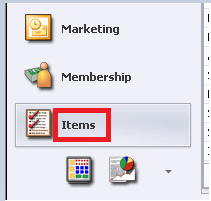
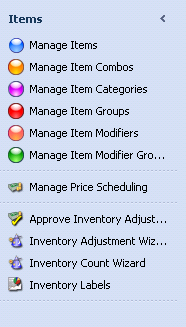
The Items Module is located in the left hand navigation. When you select the Items module; the top left panel will list the Item Option menu(s) that we will cover in this guide. Items will open in the Manage Items tab.
Item Rules
The Item Setup consists of three tiers: Items, Categories, and Groups. All Items belong to a Category, all Categories belong to a Group.
Example of a Tier:
Food (Item Group)
Entrée (Item Category)
Lobster Ravioli (Item)
8oz Steak (Item)
Trout w/Crab Sauce (Item)
An Item can only belong to one Category and one Group. You can have unlimited number of Items in a Category and you can have unlimited number of Categories in a Group.
Please Note: The Tax and Service Charge percentages are determined by either the Item Category or Item Group (not the Item level).
You can enter the GL Sales Account on the Item, Category, or Group level.
Please Note:
Item overrides the category and group settings.
The Category can override the Group settings (only if the Override Group Settings is checked).
The Group settings will be used if there is no override on the Item or Category setting.
Standard Icons
The toolbar above all grids list the standard icons:

New, Edit, Delete, Export to Excel, Refresh, Clear Filter Active/Inactive Items, Help (Navigates to Client Facing Knowledge Base), and the Search field.
On all maintenance screens this toolbar lists the standard icons:
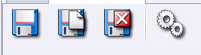
Save - Remains on the screen.
Save & New - Saves the record and clears the screen for a new record.
Save & Close - Saves and exits the maintenance screen.
Audit Logs - Shows date of last change, old/new values, and user who made the change.
Manage Item Groups
Select Items, then Manage Item Groups.
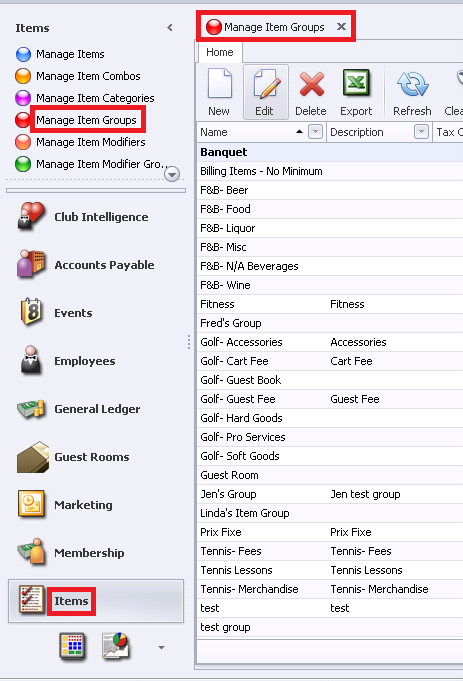
The Grid that displays will vary from user to user. For example, if the user is only allowed to see Retail items they will not see FNB or Billing Items.
To customize your grid to display different columns:
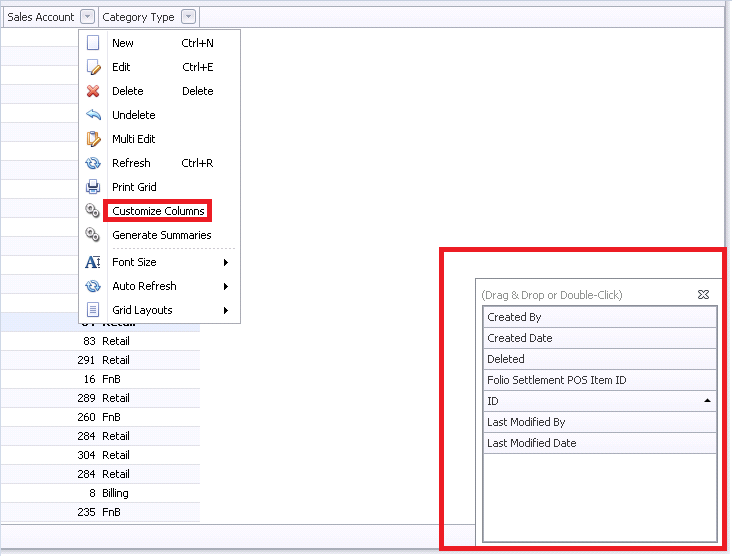
Right click anywhere on the grid and select Customize Columns. A list of Columns will appear and can be added to the grid by simply double clicking or dragging and dropping the column in question. The columns available will vary by module.
Click on the column heading to sort by any column or use the funnels to filter the information
listed.For more information on grids, please click here to navigate to Clubessential’s Client Resource Center. Grids can be found under the Interactive Reports Module.
To edit an Item Group: Highlight the Item Group and double-click or select the Edit icon on the toolbar.
To add new groups, click the New icon.
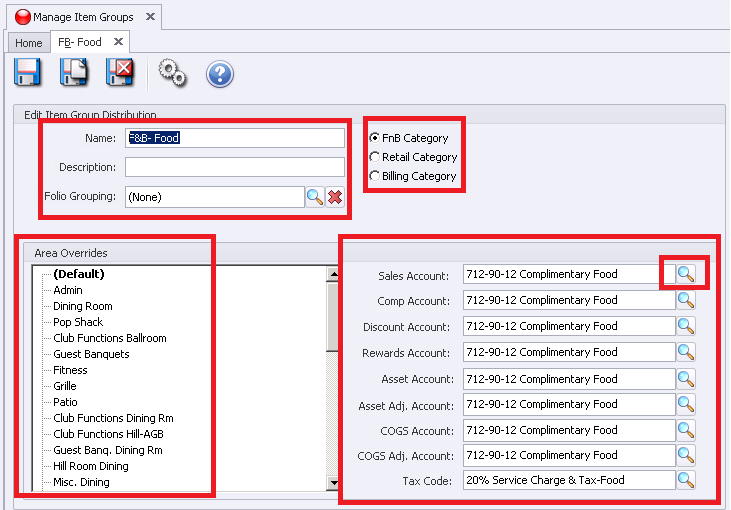
The Item Group screen will appear. See details below.
Name - Enter the name of the group.
Description - Additional description of the group; this is optional for internal viewing only.
Folio Grouping - Relates to Guest Room Items.
Select the Group Category that relates to the Items that will be associated with the Group
Select FnB Category if the Group is for Food & Beverage POS or Banquet Items.
Select Retail Category if the Group is for Retail POS Items.
Select Billing Category if the Group is for Billing Items (these items will not be available in POS).
Area Overrides
Within System, then Areas: Highlight the Default Area and enter the Account information to the right of the screen (required).
Please Note: Each Area can have different Account allocations by highlighting the Area name and entering the accounts.
Select the Accounts for General Ledger allocations:
Sales Account - Select the revenue account that will be credited when items are sold.
Comp Account - Select the account that will be debited for the amount of comps made at POS.
Discount Account - Select the account that will be debited for the amount of discounts made at POS.
Rewards Account - The field is related to a future enhancement and currently not used; you can use any account but it is required before you can save and exit.
Asset Account - For Retail Items only: select the account that should be debited when inventory is received and credited when inventory is sold.
Asset Adjustment Account - For Retail Items only: Select the account that will be used when making Inventory Adjustments (can be a debit or credit based on the adjustment).
COGS Account (Cost of Goods Sold) - For Retail Items only: select the account that should be debited when inventory is sold (that offsets the credit to the inventory asset account).
COGS Adjustment Account - For Retail Items only: select the account that will be used when making Inventory Adjustments (can be a debit or credit based on the adjustment).
Tax Code - The tax code selected will determine the amount of tax and service charge that will be added to items when sold. (You may refer to the Tax and Service Charge Setup Manual for more information).
When finished select Save & Close.
Manage Item Categories
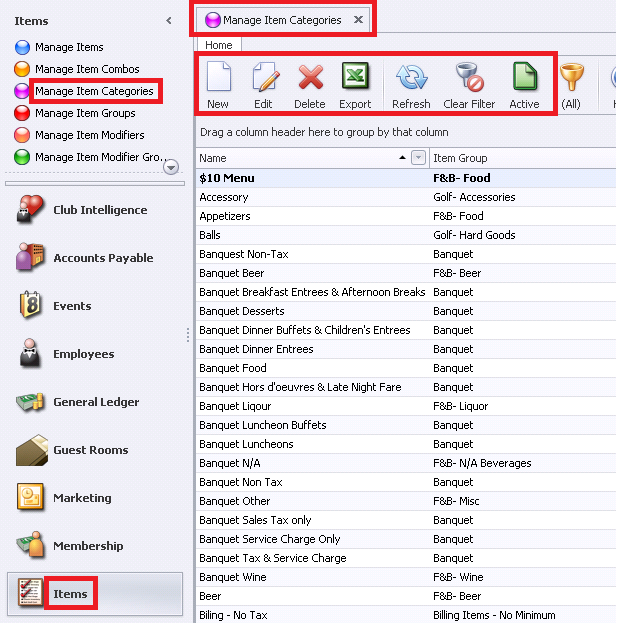
Select Items then Manage Item Categories.
Please Note:
The Grid will vary from user to user. Example: if the user is only allowed to see Retail items they will not see FNB or Billing Categories. You can customize your grid to display different columns (Please click Here if you need a refresher on how to customize Grids). You can click on the column heading to sort by any column or use the funnels to filter the information listed. Above the grid is a toolbar listing the standard icons:
New, Edit, Delete, Export to Excel, Refresh, Clear Filter, Active/Inactive Items, and Help.
To edit an Item Category,
Highlight the Item Category and double click or select the Edit Icon on the toolbar.
To add a new Category:
Click the New icon.
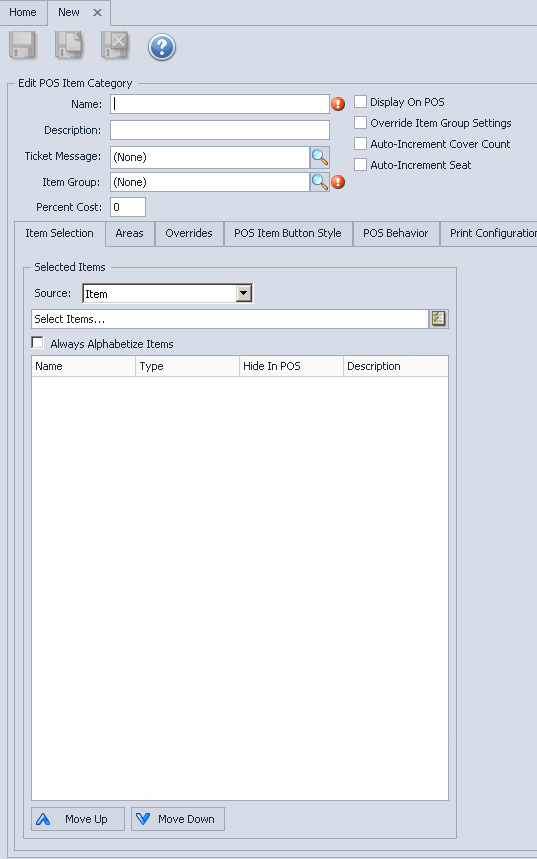
The Item Category screen will appear. At the top of the screen are the standard icons: Save, Save & New, Save & Close, and the Audit Log.
In the middle of the screen are various Tabs; we will cover each Tab’s function in this section.Name - This field is required. Enter the name of the Category.
Description - Additional description of the Category; this is optional for internal viewing only.
Ticket Message - This is optional, select a ticket message that will print on POS receipts each time this item is charged. For example, if your club is having an upcoming scotch tasting, you might attach a Ticket Message to a category that includes your scotch items that provides details of the event. Please Note: The same type of settings can also be set at the Item level.
Item Group - This field is required. Click on the search icon to see available Item Groups. If you need to setup a new Item Group click on the Quick Add button (click here for more on Manage Item Group).
Percent Cost - You can add a theoretical cost percentage for this category. This cost percent will be applied to all items associated with this category and report on the Interactive Reports > Inventory > Gross Margin Report. Please Note: The Item level allows a cost dollar; if you have a percentage on the category level the Item cost dollar will override the category cost percent.
Display at POS - Check this box if the items in this category are to displayed at Point-of-Sale. This is a default setting and can be overridden on the Item level.
Override Item Group Settings - If this box is checked the system will use the Category settings and ignore the Group settings. The Override Tab will be activated and required if this field is checked.
Auto-Increment Cover Count - Applies to F&B POS Only. When an item in this category is sold at POS it will automatically increase the cover count by one. This only applies to F&B Areas that track covers. This is a default setting and can be overridden on the Item level.
Auto-Increment Seat - Applies to F&B POS Only. When an item in this category is sold at POS it will automatically increment the seat number. This only applies to F&B Area that are setup for Seat Position. This is a default setting and can be overridden on the Item level.
Category - Select the Category Type that relates to the Items associated with this Category.
Select FnB Category if the Group is for Food & Beverage POS Items and Banquet
Select Retail Category if the Group is for Retail POS Items
Select Billing Category if the Group is for Billing Items such as Minimums, Dues, Scheduled Billings, etc…(items in this category will not be seen at POS).
Default Course - Applies to F&B POS Only. If you have POS Areas in your club that use coursing it is recommended that you set the default course for the food Categories being sent to the kitchen. The Category level is only the default and can be overridden on the Item level and overridden at POS.
Items Selection Tab
The Selected Items box will list all Items setup for this Category. This section gives you the ability to organize the items how you want them to appear in the POS button.
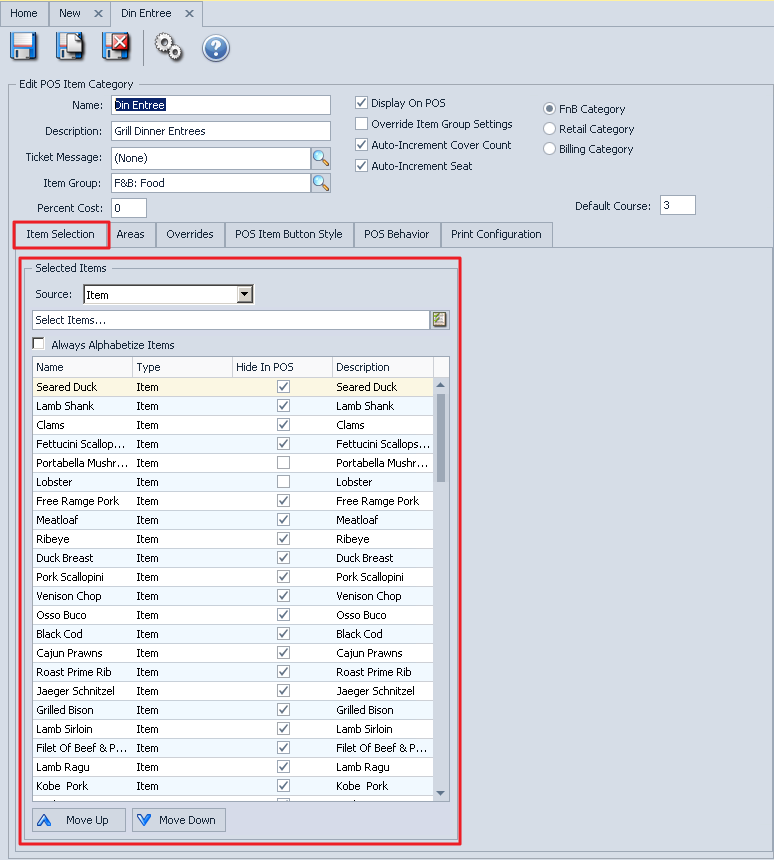
Move Up/Down Arrows - Highlight an item and click the Up or Down Arrow to move the item one line at a time.
Always Alphabetize - Check the Always Alphabetize flag to list alphabetically A to Z. If checked, the move up and move down feature will be removed.
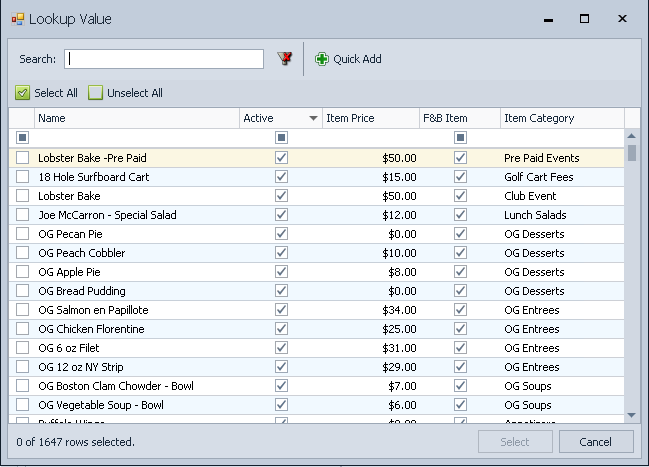
Select Items Lookup - This will list all items in the system from all categories. You can move an item from another category to the displayed category by clicking the item to select, and then clicking Select on the bottom of the Lookup value.
Please Note: Another way to change the Item’s Category: Go to the Manage Items module and change within the item itself.
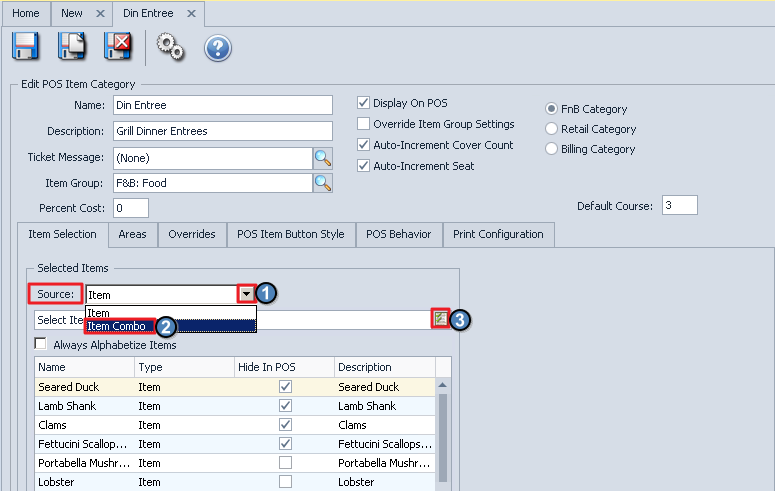
Available Item Combos - To display a list of combos in the system from all categories, change the Source to Item Combo and select the Item Lookup.
Area Tab
Select the Areas in which the items in this Category are allowed to be sold.
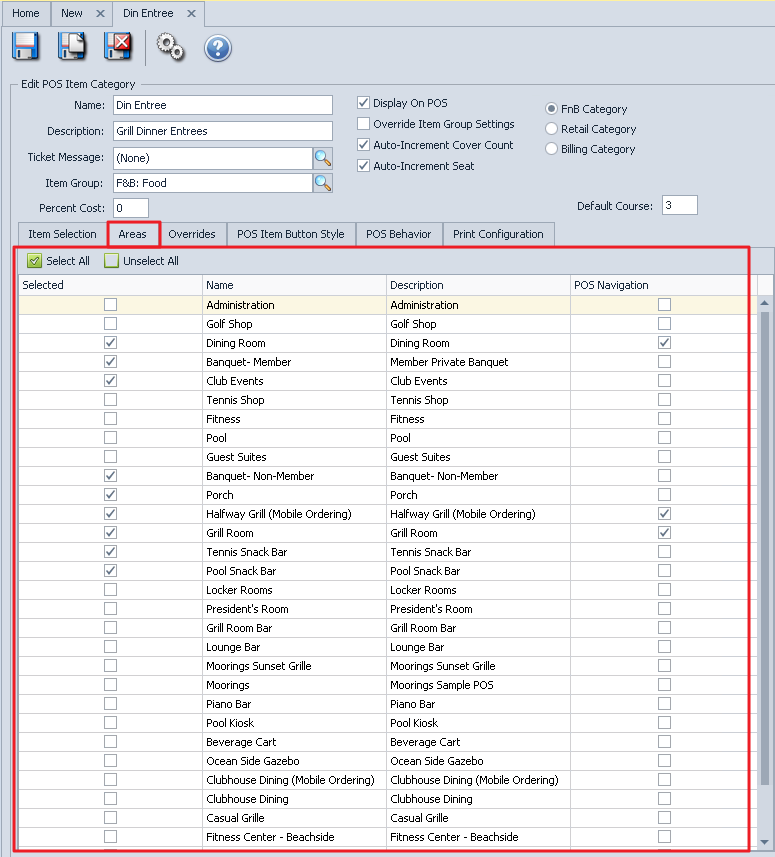
If the Area is not checked, the items in this category will not be seen at POS. Employee must be given security rights to each Area; if they do not have permissions they will not see the Area at POS, on reports, and in searches.
The two buttons to the far right of screen: top button is Select All the bottom button is Unselect All.
The last column is called POS_Navigation. It is specific to Classic POS. If you put a check mark for the Area, a button for the Item Category will be created and placed at the top of the Classic POS ordering screen for quick selection.
Override Tab
The Override Tab is only available if Override Item Group Settings is checked. When this field is checked, the Item Group settings will be ignored and the Category settings will override the Group settings.
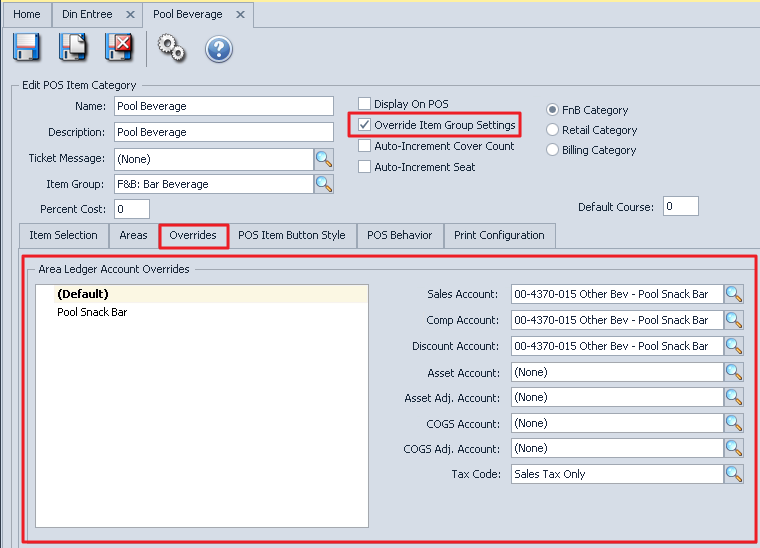
Please Note: If the Accounts are grayed out, then the Override Item Group Settings is not checked.
POS Button Style
POS Button Style allows for the change of the button size or font size.
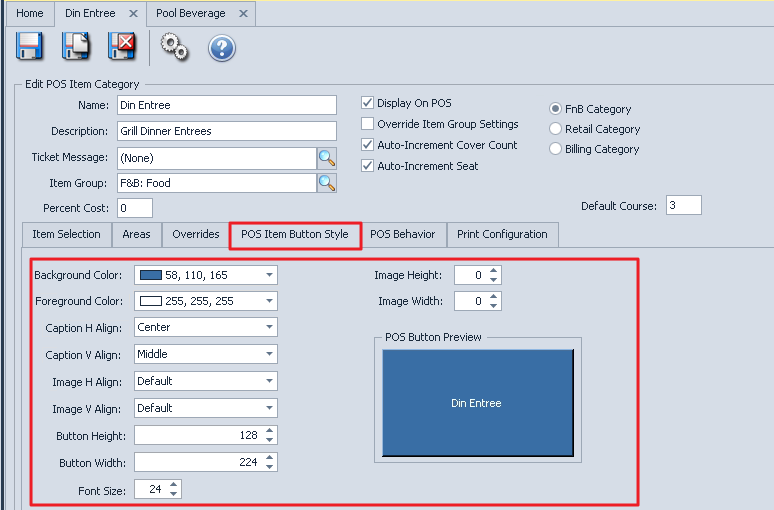
Button Image - Upload an image to display on the button instead of text. You cannot see the button but if you hold your mouse at the end of the line or just click the end of the line you can browse to the image file.
Background Color - Click the down arrow and select the color for the background.
Foreground Color - Click the down arrow and select the color for the text.
Caption H Align - Click the down arrow and select the horizontal alignment of the text.
Caption V Align - Click the down arrow and select the vertical alignment of the text.
Image H Align - Click the down arrow and select the horizontal alignment of the image.
Image V Align - Click the down arrow and select the vertical alignment of the image.
Font Size - Enter the font you want the text size to be. This is for the button text in POS for the items associated with this category. You will not see the font change in the preview box since this is pertaining to the size of the Items not the Category text.
Image Height - Change the image height; 100 pixels is a good starting point.
Image Width - Change the image height; 100 pixels is a good starting point.
POS Button Preview - This box will give you a preview of what the alignment and colors.
Please Note: All fields related to Color and Text are default settings for the Item buttons associated with the category. For example, I might have a POS button on my screen group design that is set to list all the items that belong to the Appetizer Category. The system will look at the button style settings and create buttons for the items based on these settings. All the fields related to the Image pertain to the Category. The category settings are defaults and can be overwritten on an Item level.
POS Behavior
You can control how an item that lives within this Category will act in the the POS.
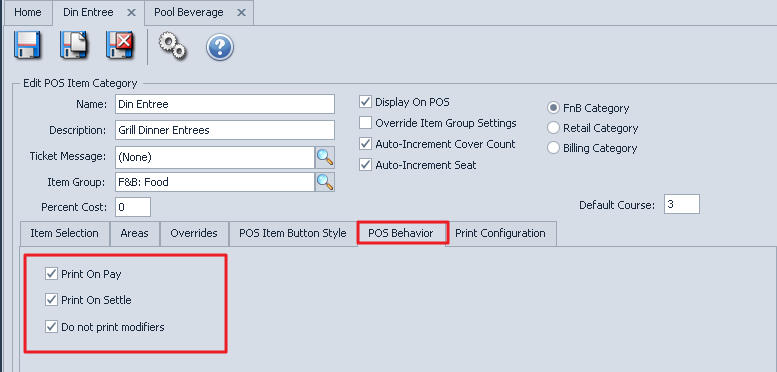
Print on Pay - If checked, Items in this Item Category will print on Pay Receipts. A Pay Receipt is the receipt the server presents to a member for signature (or payment method and additional gratuities to be added).
Print on Settle - If checked, Items in this Item Category will print on Settle Receipts. A Settle Receipt is the Receipt that is printed after the sale is tendered to Member Charge, Cash, etc. It will print the final total with additional tip and payment method.
Do not print modifiers - If this field is checked and the modifier has a price, the price will add into the base price and the modifier WILL NOT print on the member receipt. Example: if a pizza is 10 and three additional items were added at 1 dollar each the check will show 13.00 pizza total. If the field is unchecked the modifiers will be listed individually on the member receipt.
Please Note: If Print on Pay and Print on Settle are not checked the Items will not be listed on the receipts. The only time a club should choose not to print an item on a receipt is if it is a zero priced item. Example: The club might want to track Member Green Fees or towels that are not charged; they will ring up the item at POS for reporting purposes but do not want it on the member receipt. Do not print modifiers is usually unchecked for food but is checked for Liquor. Example: if there are additional charges for food add-ons most clubs want to show that on the receipt. However if there are extra charges for Liquor on the rocks or up most clubs don’t want that listed on the receipt and prefer to add the extra charge into the base price.
Print Configuration Tab
Please Note: This tab applies to FnB Item Categories Only and does not apply to Retail or Billing Categories.
The Print Configuration Tab tells the system which Prep-Printer the items within this category are sent (Hot, Cold, Bar, etc.). The F&B Items will inherit the print configuration but can be changed on an item level.
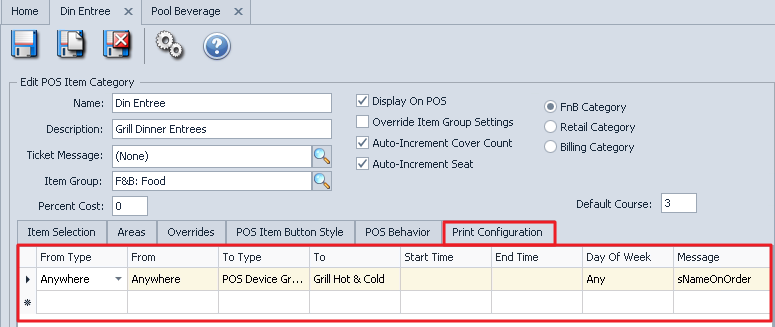
The From Type works in conjunction with the From field. These fields are used if the club has more than one kitchen or bar. Click the down arrow to get a list of options.
From Type Options:
POSDevice - If the item is to print to a specific prep printer (kitchen/bar) based on the Terminal location,click the down arrow and choose From a Terminal Device (the system will list all devices but you must select a Terminal device not a Printer device) Example: The club has an upstairs and downstairs kitchen, if an item is sent from a POS terminal upstairs it will always print to the upstairs kitchen no matter what Area was selected
Area - Is used if the item is to print to a specific prep printer (kitchen/bar) based on the Area the ticket was open. From click the down arrow and choose the Area. Example: you have an upstairs and downstairs kitchen, if an item is sent from the Dining Room it always prints to the downstairs kitchen even if it was sent from an upstairs terminal. Please Note: If Area is selected ALL Areas that send orders must be setup > to Add another Area configuration click the *asterisk; this will create another line.
Area Category - This option works the same as Areas except it pulls from the Area Category instead of individual Areas
Anywhere - If there is only one kitchen or bar select this option.
From Column Options:
Please Note: The list will vary from club to club. If POSDevice was selected the list will populate all devices (both printer and terminal). If Area was selected the list will populate all the Areas setup in your system. You must setup and configure each Area that prints orders to a remote printer. If Area Category was selected the list will populate all the Area Categories set up in your system. Anywhere will only give the option Anywhere.
To Type Options:
The To Type works in conjunction with the To field.
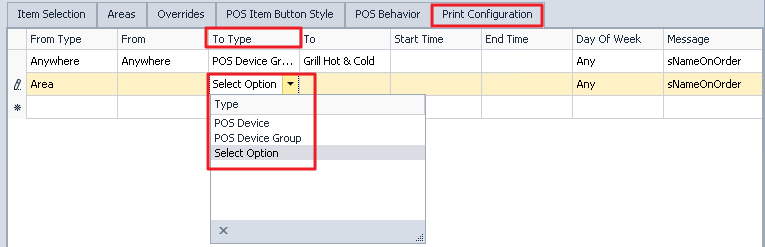
To Type:
POSDevice – Devices are both terminals and printers.
POSDevice Group – this is the preferred setup; using groups makes it easy to reroute orders to a different printer if a printer dies or orders need to reroute to a different kitchen or bar.
To:
If POSDevice was selected the system will list all Terminals and Printers setup in your system.
If POSDevice Group was selected the system will list all device groups set up in your system.
Start Time & End Time - Used when an Area of the club uses more than one kitchen or bar in one day. Example: The clubs orders print to a grill kitchen from 8am to 3pm and then from 3:01pm to close the orders print to the Main Kitchen printer.
Day Of Week - Used only if certain days Areas of the club use more than one kitchen or bar, if this applies to more than one day each day will need to be setup separately.
Message - The Category setup should always be sNameOnOrder: this tells the system to default the send name to what the item description is. The Send Name can be changed on the item level.
Please Note: Do not leave the Message field blank or None; if blank or None no Item description will print on the prep-printers unless you manually enter the name on the item level. If you accidently clicked None and want to fix; highlight the line by clicking the pencil on the left of the line and hit your delete key on the keyboard.
Click Save & Close when done.

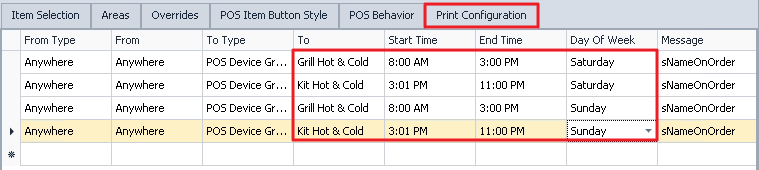
The print configuration is setup by the Clubessential Trainer during implementation.
Manage Items
In CMA, select Items then select Manage Items.
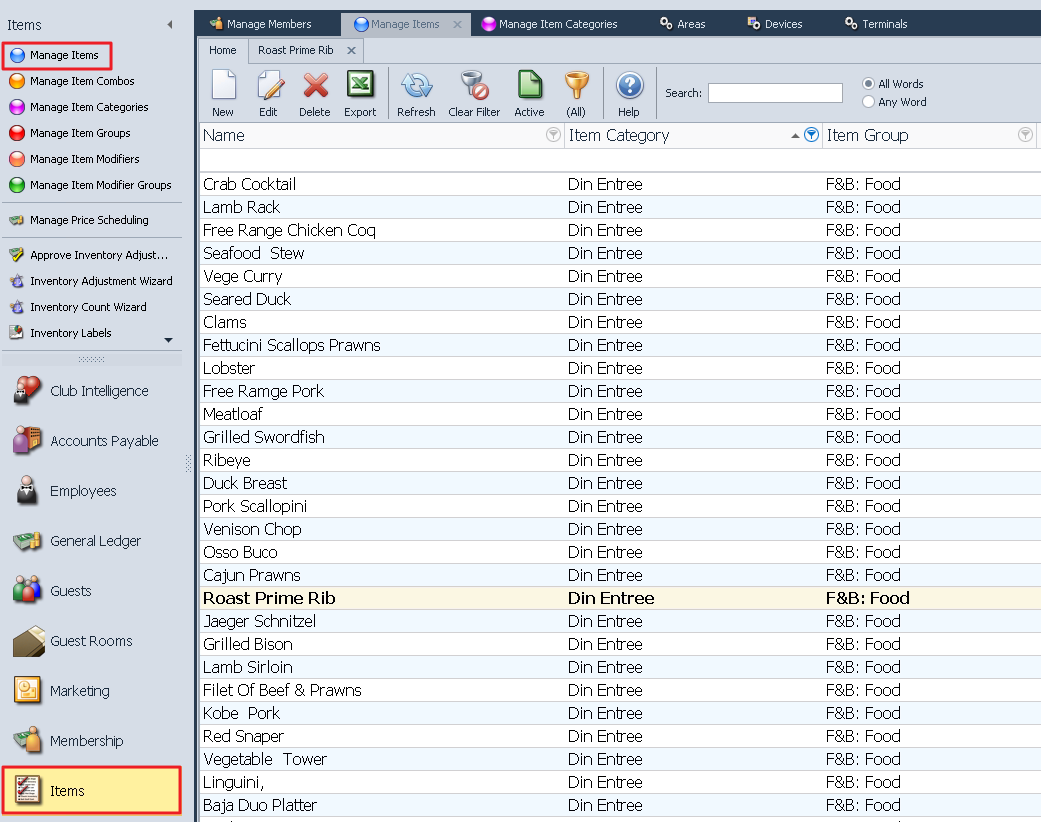
Please Note: Grids are user defined; the available custom fields are determined by your employee security rights. Contact your administrator to inquire about your employee security settings if you have questions. Clubessential employees are not allowed to change employee security rights; only a club administrator is allowed to make these changes. You can customize your grid to display different columns and use the funnels to filter information
There are three types of Items, each have different requirements and capabilities. In the following sections we will cover each separately.
Billing Items: In this section, we will cover setting up items to be used for billings such as Dues, Initiation Fees, minimums, etc. These items are not available at POS.
FnB Items: In this section, we will cover the fields that apply to the Food and Beverage Point of Sale.
Retail Items: In this section, we will cover the fields that apply to the Retail Point of Sale such as Golf, Tennis, Spa.
Manage Billing Items
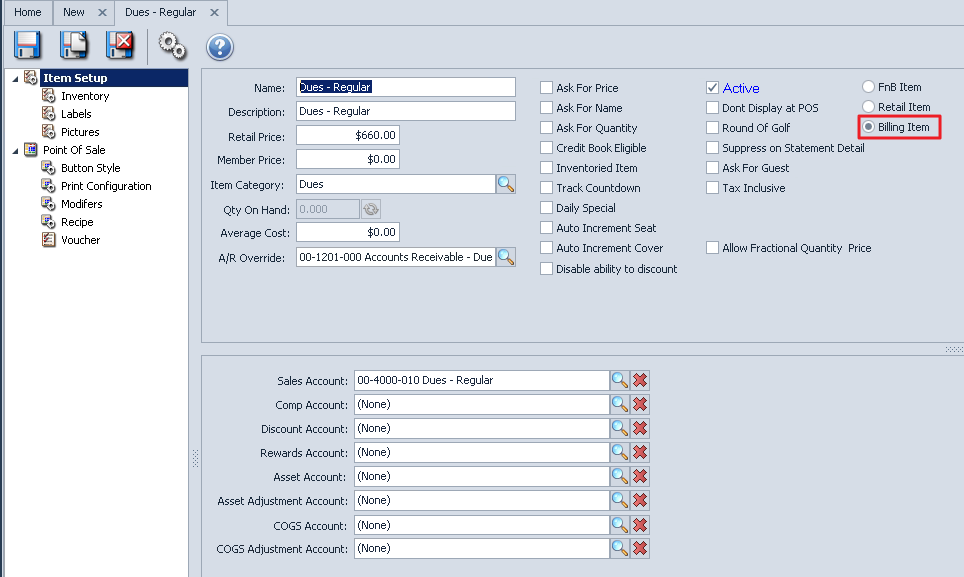
Edit an Item - Highlight the Item and double-click or select the Edit icon on the toolbar.
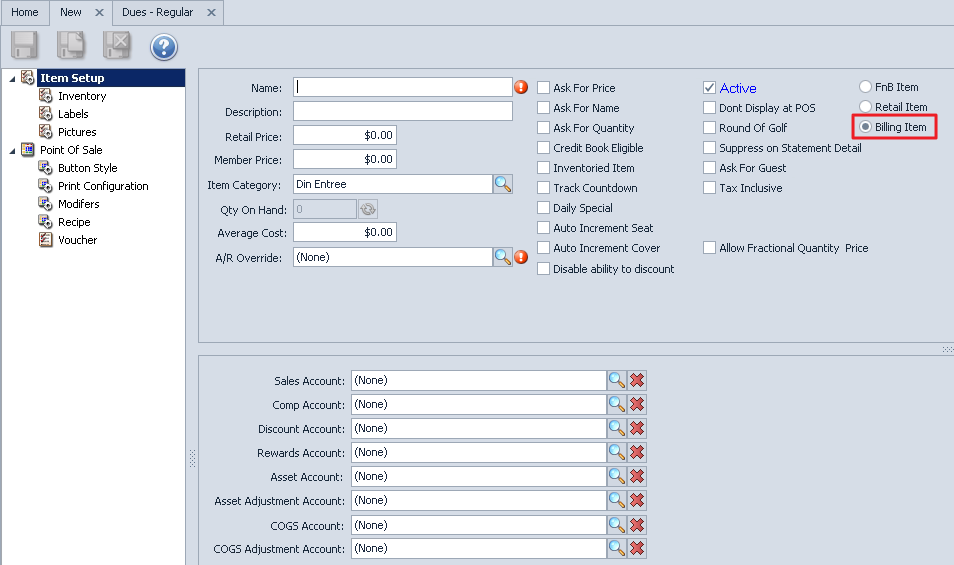
Create a New Item - Click the New Icon. The Item Maintenance screen will appear, details below.
Billing Item - Must be checked.
Active - The system defaults to Active.
Name - Give the item a Name.
Description - This field is not used for billings.
Price - Typically there is no price on the item level, the prices are set up in the billing setup. The item is mainly used to direct the transactions to the correct Debit or Credit Ledgers. If this item will not be used as a recurring billing item and manually charged through Member Charge you can add a price.
Item Category - Click the search icon and select the appropriate Item Category.
A/R Override - Click the search icon and select the GL Accounts Receivable Debit Account.
Sales Account - Click the search icon and select the GL Credit Account for income.
Manage F&B Items
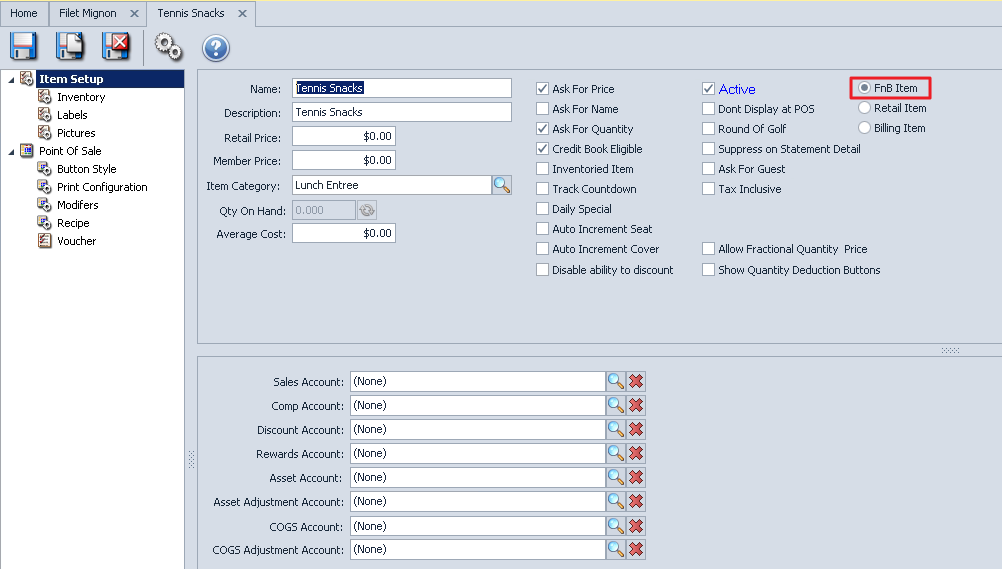
Edit an Item - Highlight the Item and double-click or select the Edit icon on the toolbar.
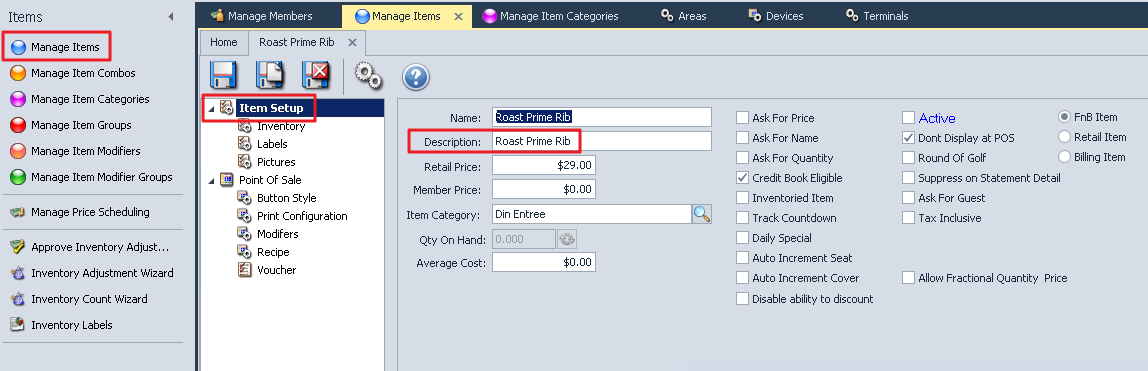
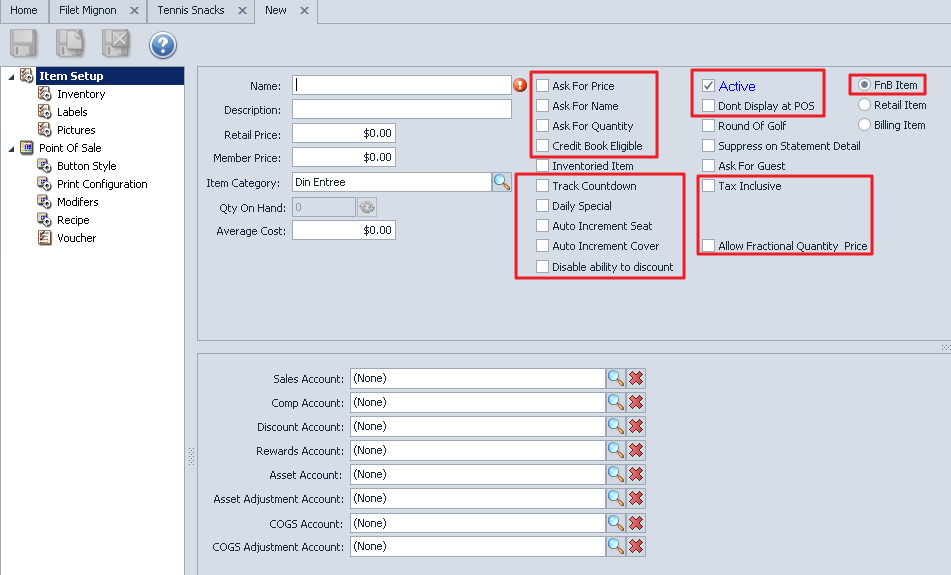
Create an Item - Click the New Icon. The Item Maintenance screen will appear, the fields in the Red boxes can be applied to F&B Items.
FnB Item - The FnB radio button must be selected to designate the item as a Food and Beverage item.
Name - This field is required. Enter the name of the Item. Use the Tab key on your keyboard to advance to the Description field.
Description - The Description field will automatically populate with the Item Name entered. You have the ability to change the Description if desired.
Retail Price - Enter the Non-Member price (see Member Price note below).
Member Price - If there are different prices for Members vs. Non-Members, enter the Member price. If both Members and Non-Members will be charged the same price, enter only a Retail Price and leave the Member Price set to $0.00. Note: When charging different prices for Members vs. Non-Members, you will need to identify Member/Non-Members in the Member Type Rule/Use Member Pricing setup; check with your Controller or authorized person.
Item Category - This field is required. Click the search icon and select the appropriate Item Category.
Average Cost - The average cost for F&B Items is a theoretical cost. The Office system does not have an F&B Inventory system but you can manually enter the cost. Items that have a cost in the setup will be added to a the Gross Margin Report.
Ask For Price - If this box is checked, the POS system will prompt the user to enter a price each time this item is ordered. This is usually used for Items such as Market Price or Open Food.
Ask For Name - When checked, the POS system will prompt the user to enter a name for the item each time the item is ordered. This is usually used in conjunction with Ask for Price on items such as Open Food. The name entered will print on the prep tickets and Member Receipts.
Ask For Quantity - When checked, the POS system will prompt the user to enter a quantity each time the item is ordered.
Credit Book Eligible - If the item can be paid with the member’s Credit Book (sweeps), check this box. Mainly used for retail items but can be used for F&B too.
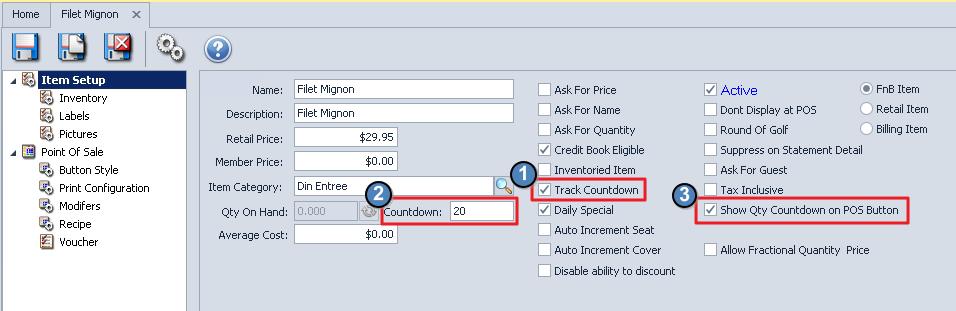
Track Countdown - Checking this box allows you to enter a quantity limit that can be sold via the POS device. When checking Track Countdown, two new fields appear. The first field is the Countdown field where the item quantity is entered. The second field is the Show Qty Countdown on POS Button checkbox. When checked, the item's remaining quantity will be displayed within the Item Button on the POS device.
How Track Countdown works within Classic POS when the Show Qty Countdown on POS Button is checked: There are only 20 Filet Mignons available to serve and 3 orders have already been placed. The item button within the POS device will show that there are only 17 remaining Filet Mignons available. Setting the Track Countdown for an item also prevents it from being sold once the countdown limit is reached. The remaining quantity for the item will change to (0) on the POS Item Button. If the server attempts to add the Filet Mignon to a ticket when then count is (0), the following error will be displayed.
How Track Countdown works within Mobile POS when the Show Qty Countdown on POS Button is checked:: There are only 20 Filet Mignons available to serve and 3 orders have already been placed. The item button within the POS device will show that there are only 17 remaining Filet Mignons available. Setting the Track Countdown for an item also prevents it from being sold once the countdown limit is reached. The remaining quantity for the item will change to (0) on the POS Item Button. If the server attempts to add the Filet Mignon to a ticket when then count is (0), the following error will be displayed.
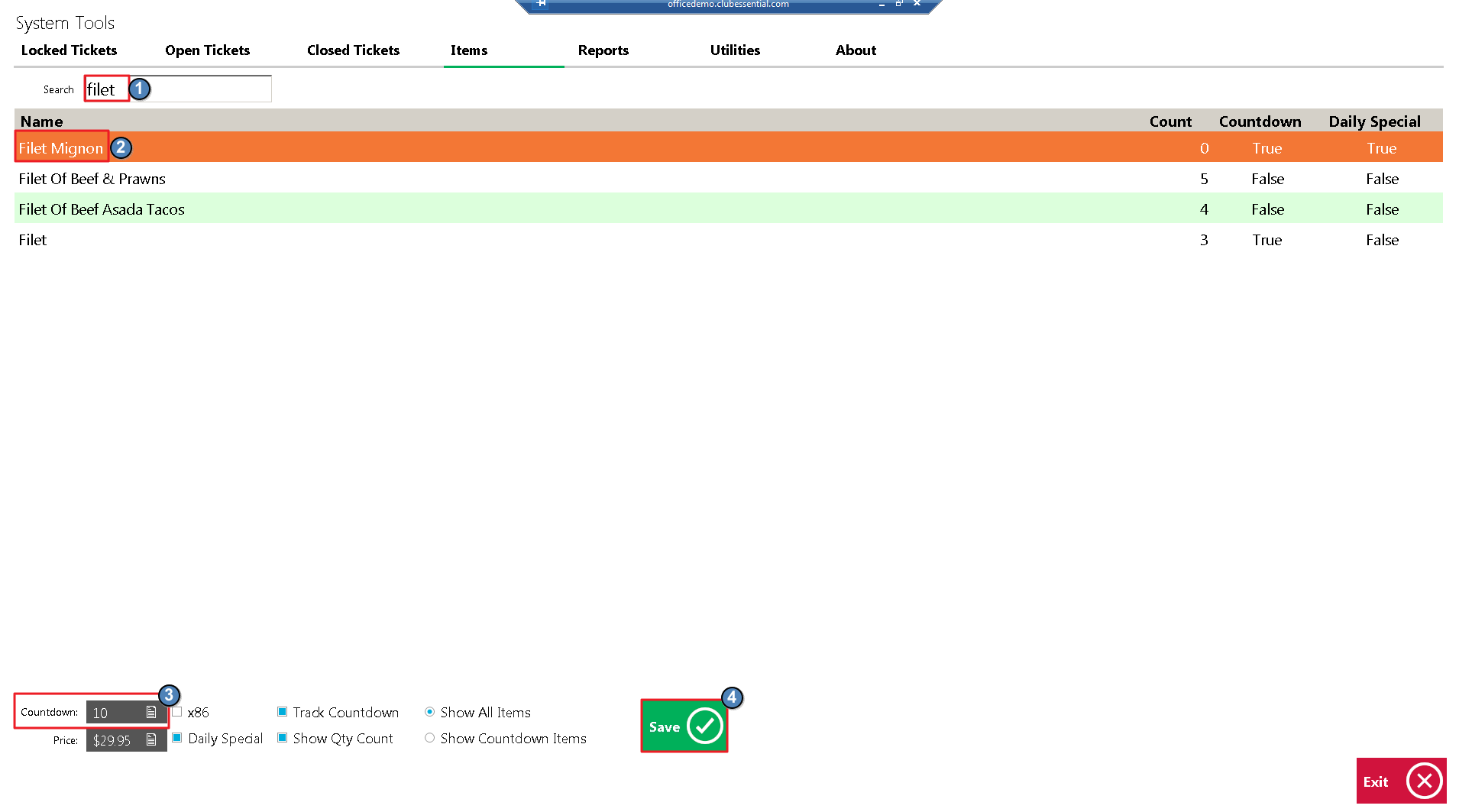
How the Countdown Amount can be adjusted within Classic POS: The Track Countdown setting can be turned on or off amount can be adjusted within the Classic POS device by navigating to System Tools > Items and then changing the Countdown amount.
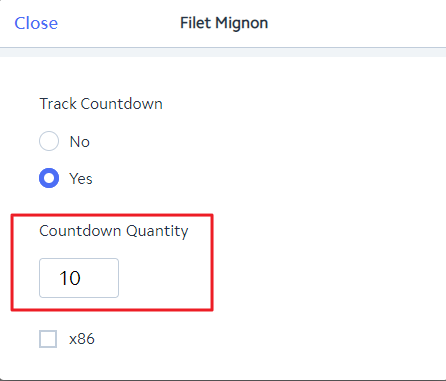
How the Countdown Amount can be adjusted within Mobile POS: The Countdown amount can be adjusted within the Mobile POS device by navigating to System Tools > Item Lookup and then changing the Countdown Quantity amount.
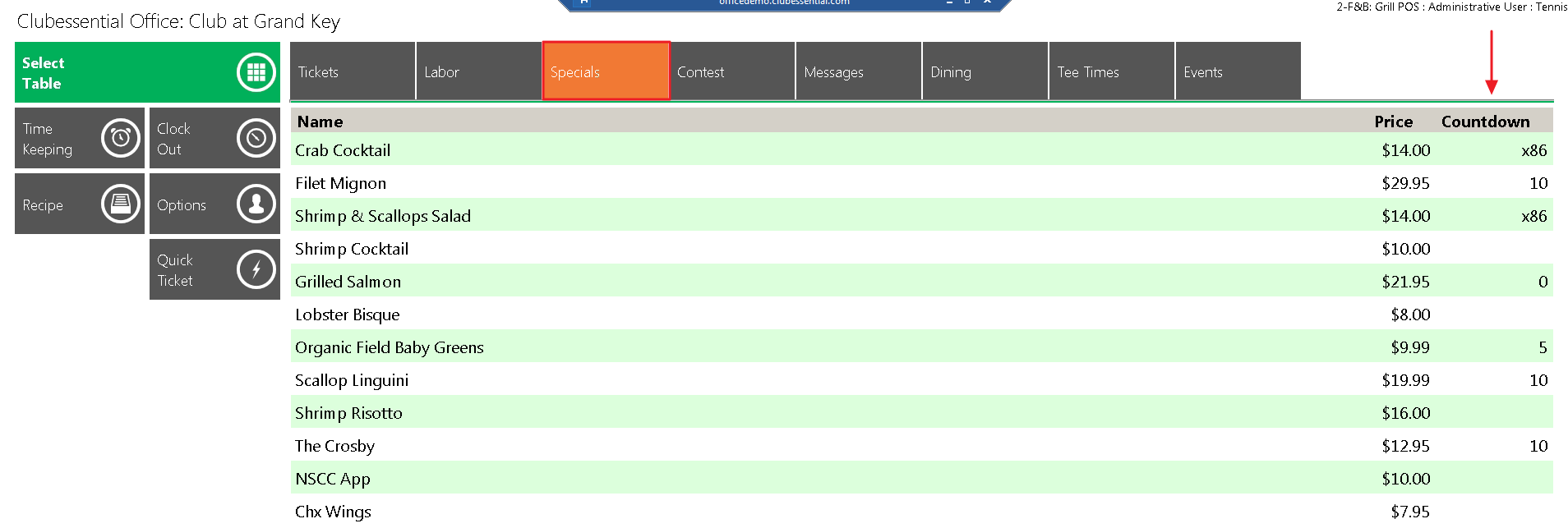
Daily Special - This is specific to Classic POS. When checked, the item will automatically be listed as a featured special under the Specials Tab of the Main Classic POS screen. If the item also has Track Countdown checked, the server will also be able to see the current countdown of the item from the Specials Tab. Servers have the ability to check the count before approaching their table to inform the member of the daily specials. Once the item's limit is reached, it will show either a count of 0 or x86.
Auto Increment Seat - When checked, the POS system will auto-increment the seat number. Checking this is not advised if the server does not take the order in sequential seat order.
Auto Increment Cover - If this box is checked when the item is sold at POS, it will automatically increase the cover count. Typically, with this feature, only Entrees might have this checked. If your members often choose salads or appetizers as their entrée it is advisable not to check this field.
Disable Ability to Discount - When checked the item will not be eligible for Discounts or Comps in POS
Active - System defaults to Active. Uncheck this box ONLY if the item is no longer available. You will still see the Item at POS but it will not let you ring it up. This is used if items are temporarily not available.
Don’t Display at POS - When checked the Item will NOT be displayed at POS. Note: Even if the Item is marked as Active, checking the Don't Display at POS will prevent it from being displayed on the POS device.
Tax Inclusive - When checked, this setting will include Taxes and Service Charges on the Member receipt unless the Ticket Template has been changed to not show Taxes and/or Service Fees.
Allow Fractional Quantity & Price - Designed for Yacht clubs that sell gasoline and need fractional pricing.
Please Note: See your accountant before entering Account information. If there is an account on the Item level it will override the Item Category and Group setting. Typically for F&B Items the GL Accounts are setup on the either the Item Category or Item Group level, not the Item level.
Sales Account - Select the revenue account that should be credited when items are sold.
Comp Account - Select the account that should be debited for the amount of any comps made at POS.
Discount Account - Select the account that should be debited for the amount of any discounts made at POS.
Point of Sale Option
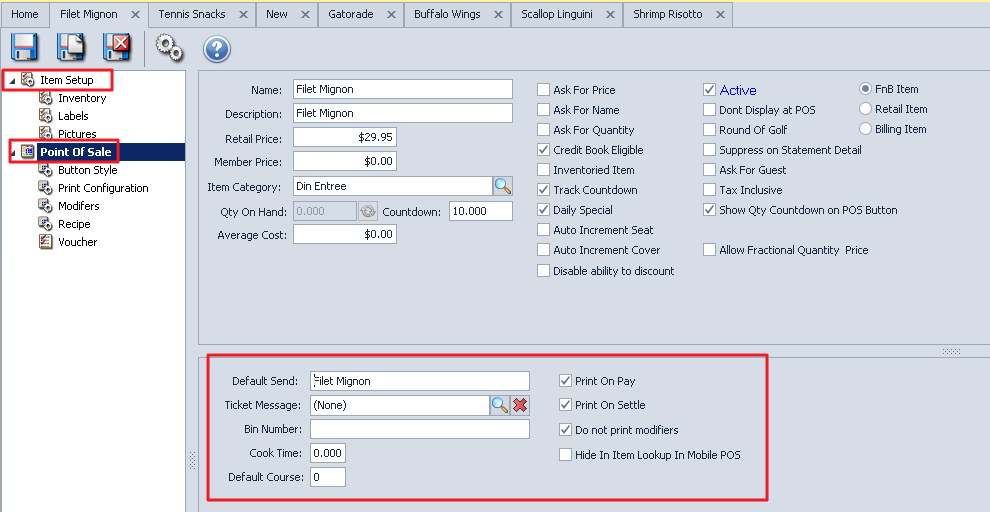
Default Send - This is the description that will print on the Prep-printers (kitchen or bar). Do Not leave the field blank if the item needs to print to a remote printer. Please Note: If you have Expanded Print turned on, the Default Send description can only be 10 characters including spaces. The name entered in the Name field will automatically populate the Default Send.
Ticket Message - If necessary, select a ticket message that will print on POS receipts each time this item is charged. For example, if your club is hosting an upcoming scotch tasting you might attach a message to each scotch item that provides details of the event. (The same type of setting can also be adjusted in the Item Category Area).
Bin Number - This number is used if the club has Bin numbers on the wine list. The servers will be able to look up Wine by Bin Number at POS. This is very useful if the club has a large wine list.
Cook Time - Not currently used.
Default Course - If your club enters orders by Course it is advisable to assign a default course to the Item. This Default Course can be changed at POS.
Print on Pay - When checked, the item will print on the Pay Receipts. A Pay Receipt is what the server presents to a member before closing the ticket to a settlement type.
Print on Settle - When checked, the item will print on the Settle Receipt. A Settle Receipt includes everything that the Pay Receipt displays but also includes the form of payment and additional gratuities. Please Note: The only time Print on Pay/Settle should not be checked is if the Item is a zero price. If the item has a price and one of these two fields are not checked; the total on the ticket will be correct but the item will not be listed.
Do not print modifiers - If this field is checked and the modifier has a price, the price will add into the base price and the modifier WILL NOT print on the member receipt.
Example: if a pizza is $10 and three additional toppings were added at $1 each, the Pizza will show as $13.00. If the field is unchecked the modifiers will be listed individually on the member receipt with associated price.
Example: The pizza will be $10 with three additional line items $1 each, for $3. Typically this is not checked for Food Items but is instead checked for Liquor Items.
Example: If the club charges an additional $1 for Liquor on the Rocks, they would not want the additional charge of $1 to print on the receipt as Rocks - $1 and prefer to add the charge into the base price.
Button Style
This area allows you to change how the item button will appear in POS.
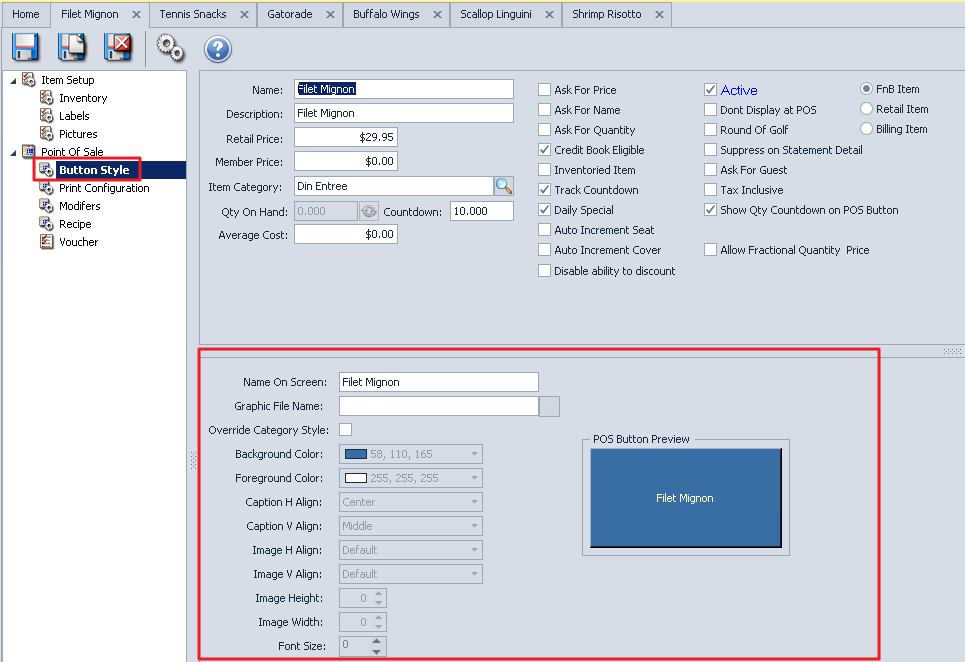
Name on Screen - This is the description to display on the POS button. The name information entered in the Name field will automatically populate the Name on Screen field.
Graphic File Name - Upload an image to display on the button. Holding the mouse at the end of the line, a light gray box will appear or click the end of the line to browse to the image file.
Background Color - Click the down arrow and select the the background color.
Foreground Color - Click the down arrow and select the text color.
Caption H Align - Click the down arrow and select the horizontal alignment of the text.
Caption V Align - Click the down arrow and select the vertical alignment of the text.
Image H Align - Click the down arrow and select the horizontal alignment of the image.
Image V Align - Click the down arrow and select the vertical alignment of the image.
Font Size - Enter the text size.
Image Height - Change the image height; 100 is a good starting point.
Image Width - Change the image width; 100 is a good starting point.
POS Button Preview - This box previews the alignment and colors.
Print Configuration
If the POS Item needs to be sent to a prep printer (kitchen or bar) the settings in this section are what determine where the order will be sent.
The print configuration is set on the Item Category level; the Item inherits the Category settings. The default Category Print Configuration lines will appear in purple. Nothing needs to be done unless you want to override the Category settings.
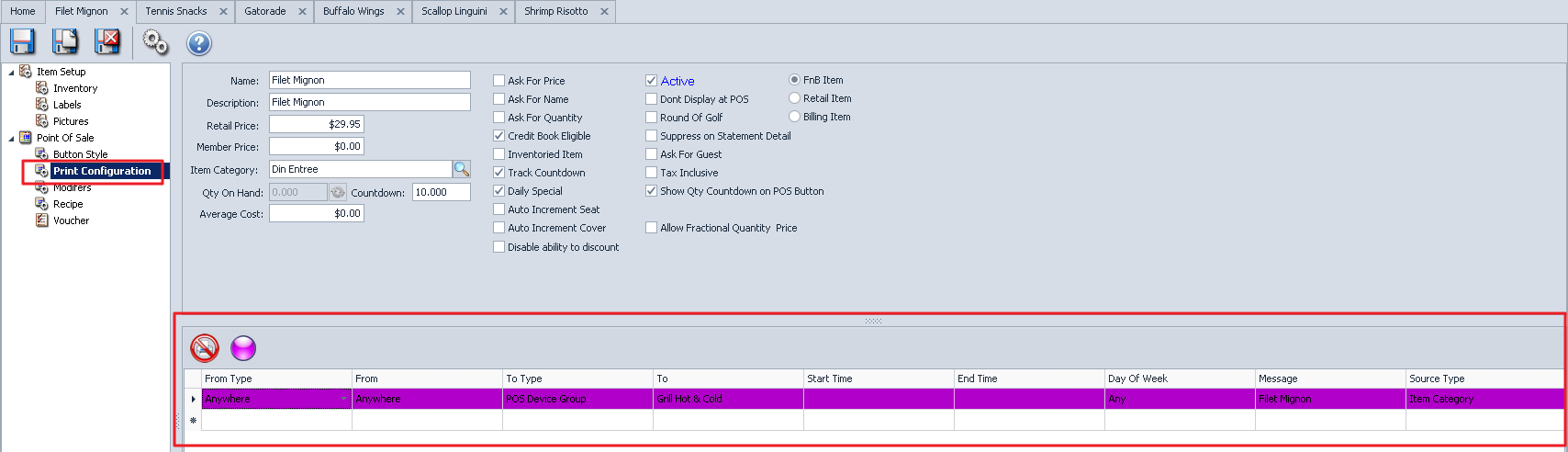
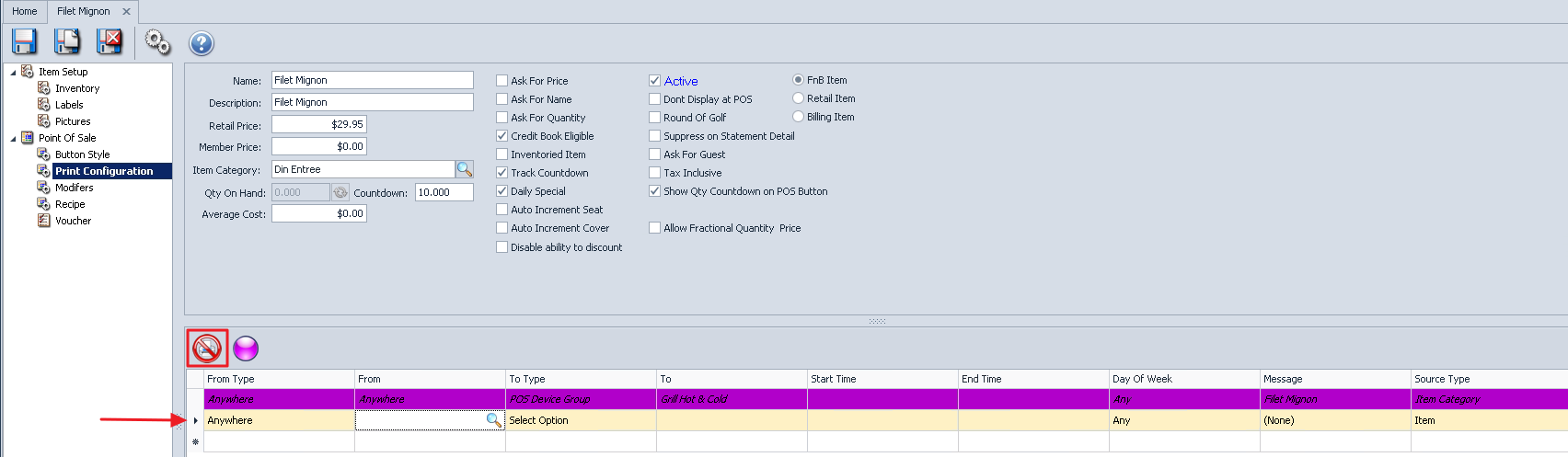
To Change the Print Configuration on the Item level, click the Print Icon with the Red Circle, which when hovered states "Don't send any print messages." When clicking this icon the system will change the default line (purple line) to italicized, indicating that it is cancelled. Another line will be added, which will appear yellow in color. Leave this line as is if the item is not to be printed anywhere. Or set-up the Print Configuration options desired by entering the From Type, From, To Type, To, Start Time, End Time, Day of Week and Message. Add as many lines as needed by clicking the "*". To revert back to the default Item Category settings, click the Purple Ball.
Modifiers
Modifiers give the ability to set modifications or choices for additional prep instructions on the item such as Meat Temperatures, side choices, etc. Every time the item is rung up in POS, the modifiers will prompt the server to select from the each modifier group attached to the item. Use the Up/Down arrows to arrange the order in which the modified will be presented in the POS device.
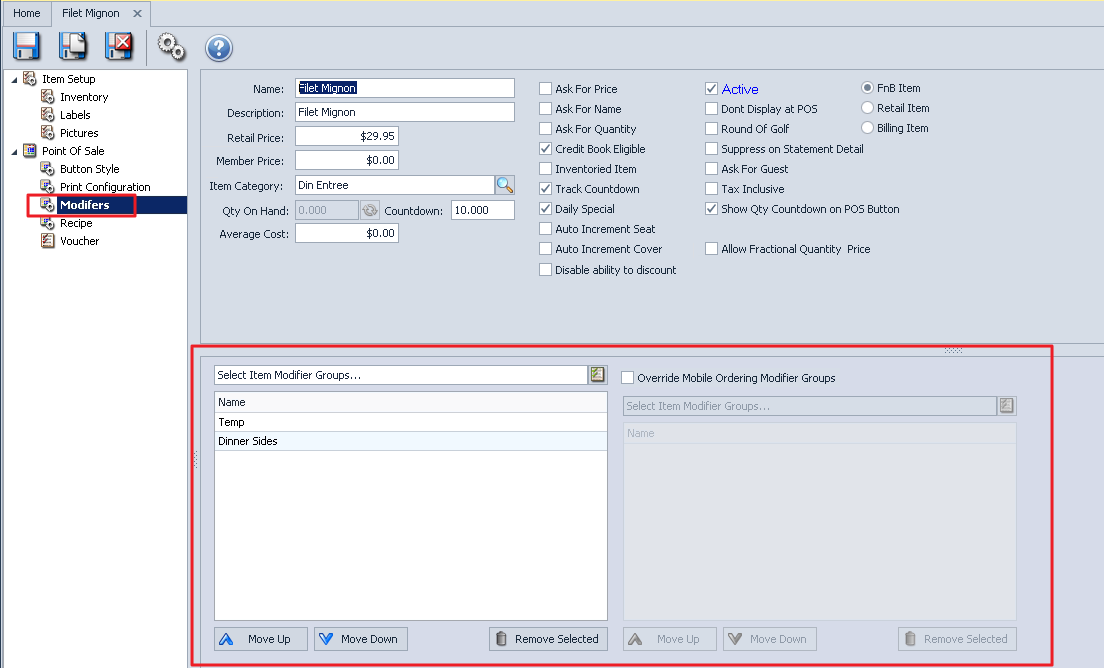
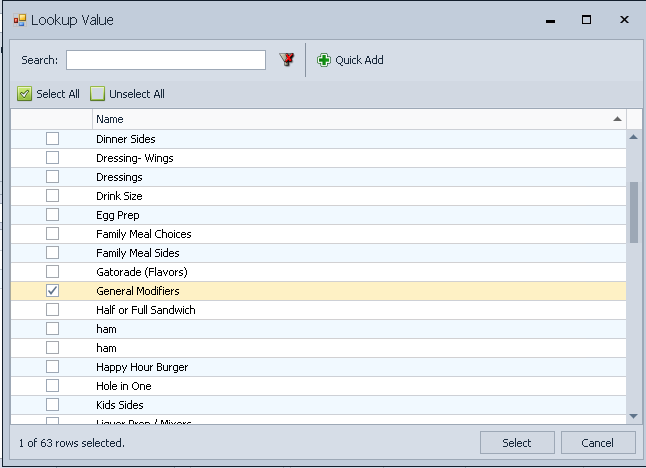
To add a Modifier Group, select the LookUp value to get a list of available Modifier Groups. Click to select the Modifier Group(s) to be added, then choose Select at on the bottom of the screen. If the modifier group you want does not exist, click Quick Add. The Add Item Modifier Groups screen will be presented where you can add a new Modifier Group.
Recipe
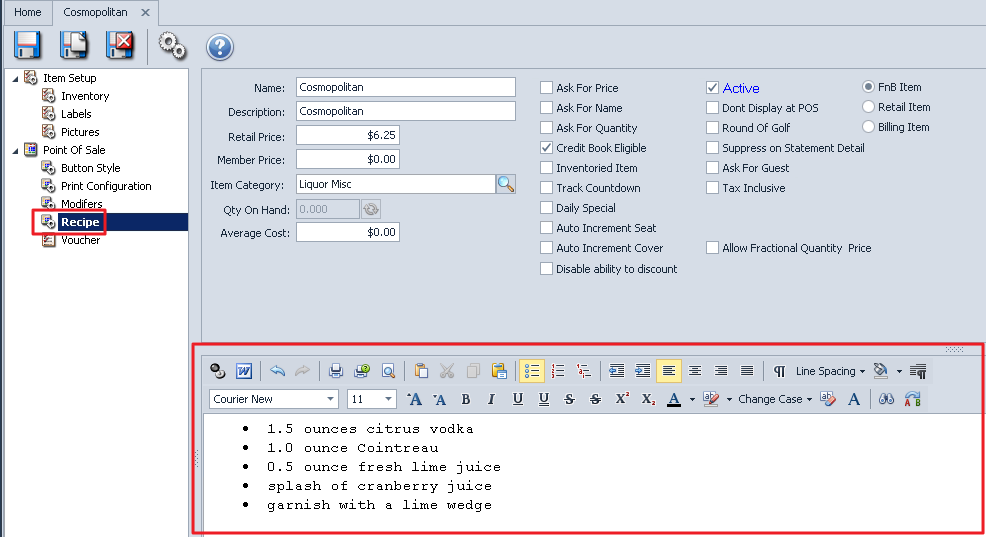
The Recipe can be seen in the main Classic POS screen by clicking the Recipe Button and searching for the item.
Enter the recipe in the blank area of the Recipe Box. At the top of the Recipe Box is an Editor Toolbar listing basic MSWord functions allowing for customization.
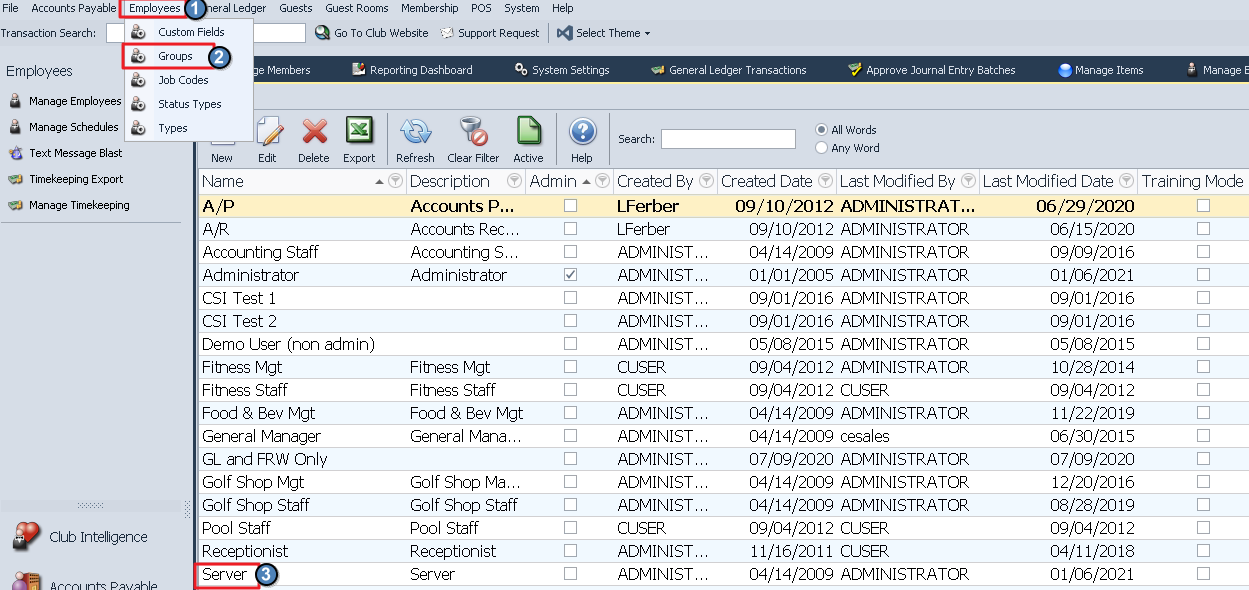
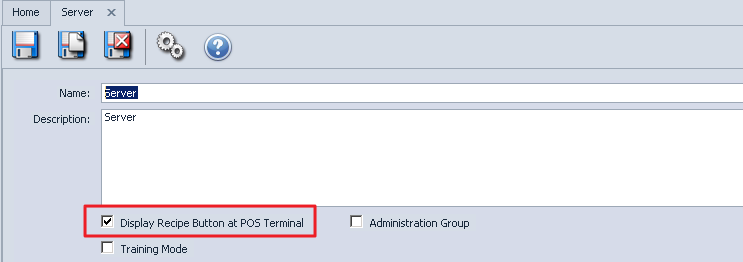
Please Note: Only servers in an Employee Group with the appropriate security rights will see the Recipe button. To activate this option, go to Employees, then go to Employee Groups and double click on the Group and put a check on Display Recipe Button at POS Terminal (see your accountant or authorized personnel to verify these changes; Clubessential cannot change employee security rights).
Manage Retail Items
To Edit an Item, highlight the Item and double-click or select the Edit icon on the toolbar.
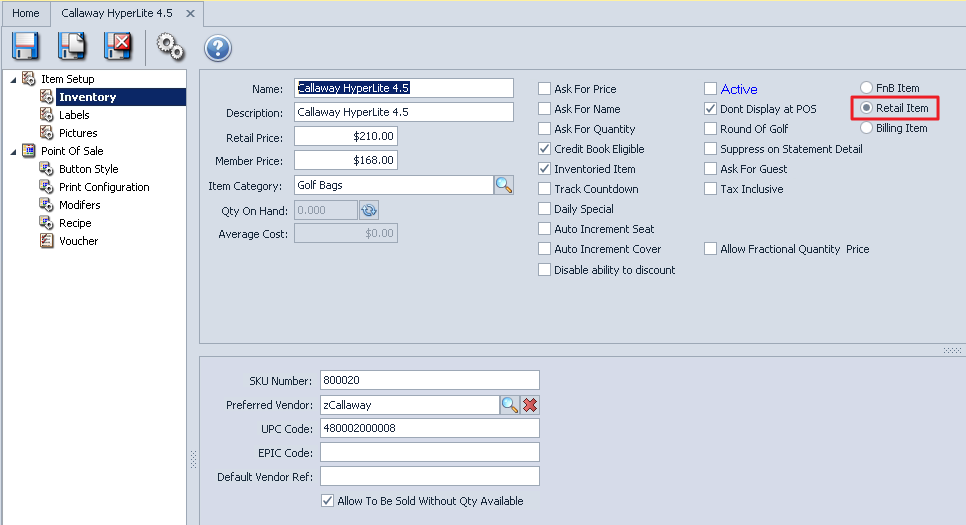
To Create a New Item, click the New Icon. The Item Maintenance screen will appear. The fields in the Red boxes can be applied to Retail Items.
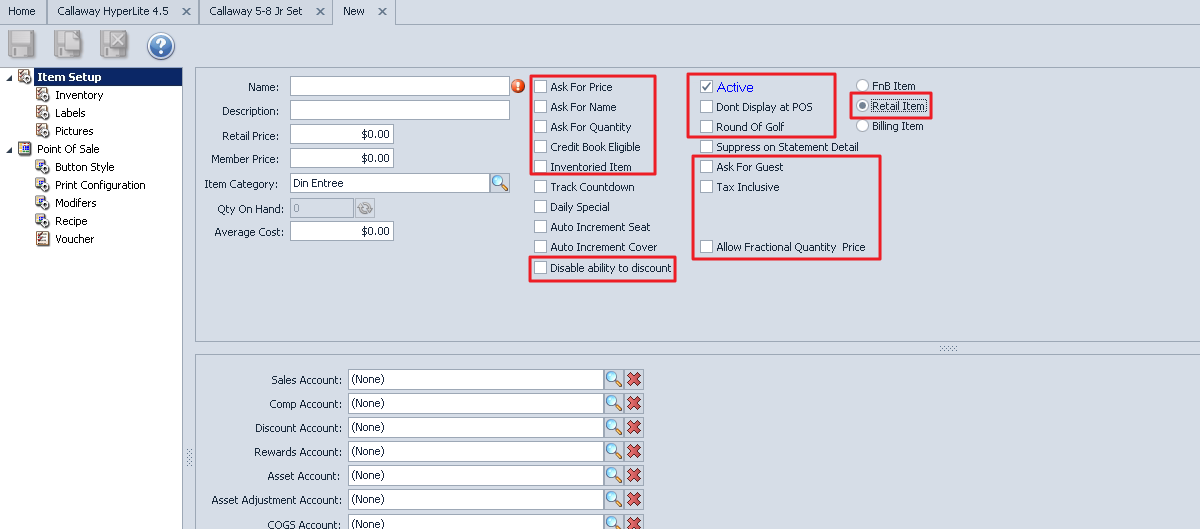
Retail Item - The Retail radio button must be selected to designate the item as a Retail item.
Name - This field is required. Enter the name of the Item. Use the Tab key on your keyboard to advance to the Description field.
Description - The Description field will automatically populate with the Item Name entered. You have the ability to change the Description if desired.
Retail Price - Enter the Non-Member price (see Member Price note below).
Member Price - If there are different prices for Members vs. Non-Members, enter the Member price. If both Members and Non-Members will be charged the same price, enter only a Retail Price and leave the Member Price set to $0.00.
Note: When charging different prices for Members vs. Non-Members, you will need to identify Member/Non-Members in the Member Type Rule/Use Member Pricing setup; check with your Controller or authorized person.
Item Category - This field is required. Click the search icon and select the appropriate Item Category.
Average Cost - The Average Cost is calculated by the system and cannot be changed if the item is checked as Inventoried Item.
Ask For Price - If this box is checked the POS system will prompt the user to enter a price each time this item is ordered. This is usually used for Items that do not have a set price such are repairs.
Ask For Name - When checked the POS system will prompt the user to enter a name for the item each time the item is ordered. This is usually used in conjunction with Ask for Price for example repairs, you can add a more specific description of the repair. The name entered will print on the Member Receipts.
Ask For Quantity - When checked the POS system will prompt the user to enter a quantity for the item each time the item is ordered.
Credit Book Eligible - If the item can be paid for with a member’s Credit Book (sweeps), you will want to check this box.
Inventoried Item - Check this box if this item will be tracked as part of the perpetual inventory tracking.
Please Note: If this field is checked, the Average Cost field will be grayed out. Only through Item Receipts can the cost be calculated and only through Inventory Adjustments can the cost be changed.
Disable Ability to Discount - When checked the item will not be eligible for Discounts or Comps in POS.
Active - System defaults to Active. Uncheck this box ONLY if the item is no longer available. The Item will still be visible at POS but it will not be clickable. This is used if items are temporarily not available.
Don’t Display at POS - When checked the Item will NOT be displayed at POS.
Please Note: If the Item is marked as Active it still will not display at POS if this field is checked.
Round of Golf - If you have our Links Tee Sheet this does not apply to your club. The Rounds report will be tracked by the Tee Sheet sign in’s. If you do not have the Links Tee Sheet and would like to track this item as a round of Golf check this field.
Please Note: When this field is checked the option Golf Rounds Setup will be activated.
Ask for Guest - When checked, the user will be prompted to enter the Guest Name each time this item is sold at POS. This feature is commonly used for items such as Guest Green Fees.
Please Note: This allows the shop to track the number of visits of individual guest.
Tax Inclusive - When checked, this setting will include Taxes and Service Charges on the Member receipt unless the Ticket Template has been changed to not show Taxes and/or Service Fees.
Allow Fractional Quantity & Price - Designed for Yacht clubs that sell gasoline and need fractional pricing.
Please Note: See your accountant before entering Account information. If there is an account on the Item level it will override the Item Category and Group setting. Typically for Retail Items the GL Accounts are setup on the either the Item Category or Item Group level, not the Item level.
Sales Account - Select the revenue account that should be credited when the item is sold.
Comp Account - Select the account that should be debited for the amount of any comps made at POS.
Discount Account - Select the account that should be debited for the amount of any discounts made at POS.
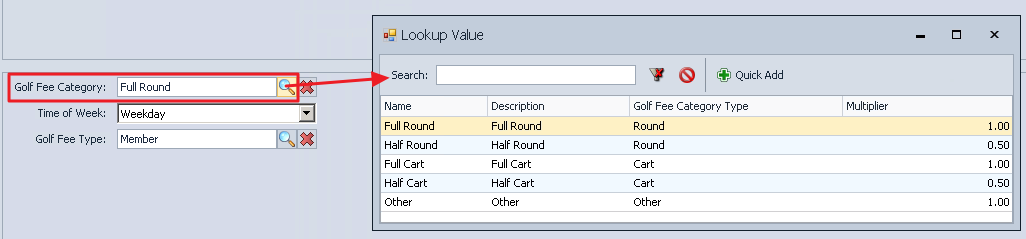
Golf Rounds Setup
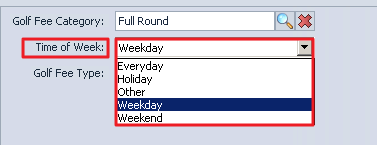
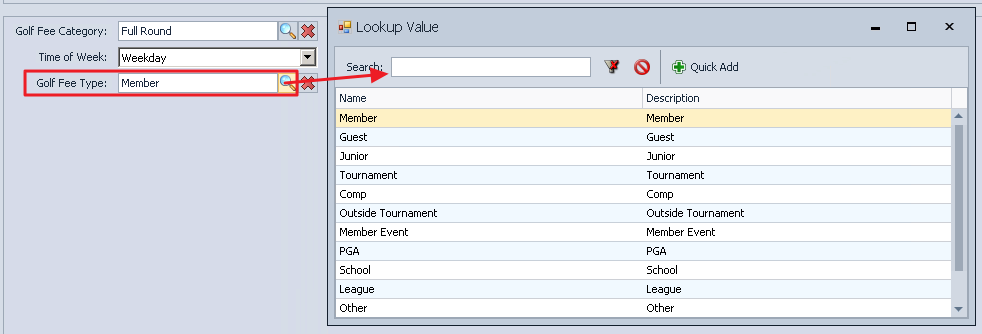
If Round of Golf is checked for an item, after Saving the item, the Golf Rounds Setup option will appear within the Item Setup section of the left hand panel. Click on this option to to set-up the different types of play for the Round of Golf item.
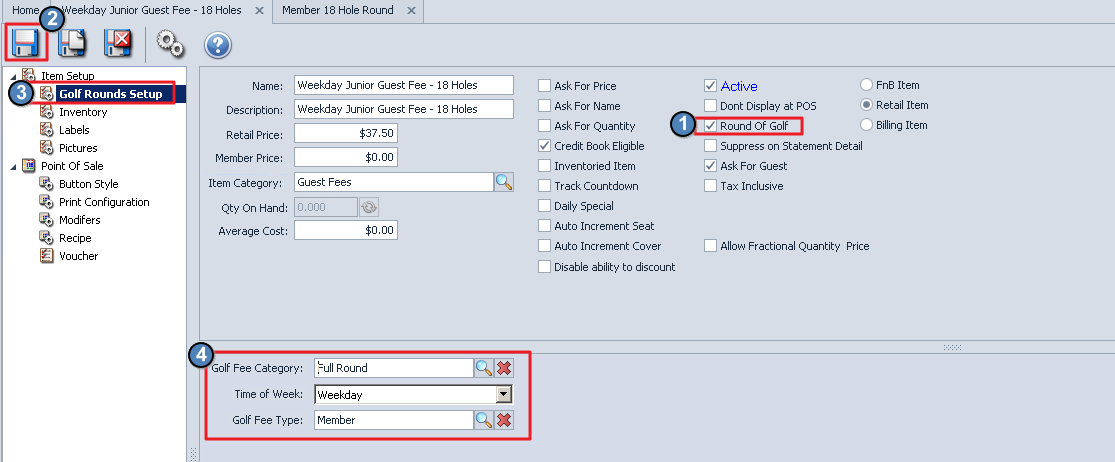
Click the lookup or drop down for choices. Note: Golf Fee Categories and Golf Fee Types are defined by your Club within the Membership module.
Inventory
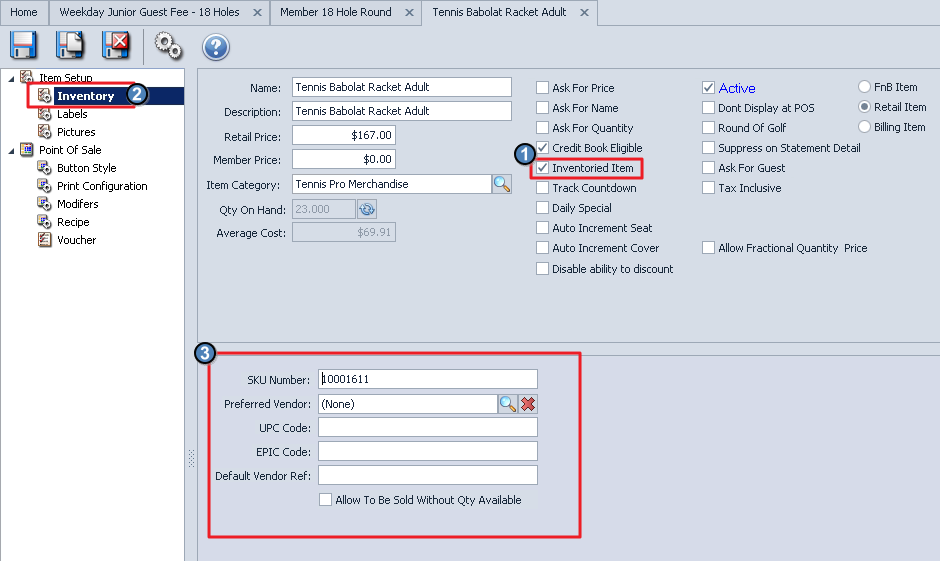
Only If the field Inventoried Item is checked does the information need to be entered.
SKU Number - The system will automatically create a SKU Number.
Please Note: The SKU will not be generated until you SAVE. You can create your own SKU if you do not want the system generated SKU; we highly recommend that if you want your own numbering system that you use the UPC code.
Preferred Vendor - The vendor you purchase the Item from. To find your preferred vendor, click the search Icon and select the Vendor.
UPC Code - You can scan or enter the Item UPC code.
Please Note: You can also create your own Numbering system; some shops want to use their old SKU so they do not have to re-label all their merchandise. When you scan the item in POS the system will first look at the UPC code, if there is no UPC code the system will look at the generated SKU.
EPIC Code - This field is not currently used.
Default Vendor Ref - Enter the number the supplying Vendor uses to refer to this item.
Allow To Be Sold Without Qty Available - If this field is NOT checked the system will look at the QTY on hand, if the item has a zero QTY you will not be not be allowed to sell the item at POS.
Please Note: If the shop wants the item immediately available to sell but does not enter the inventory the day it arrives, it is highly recommended that this field is checked.
Labels
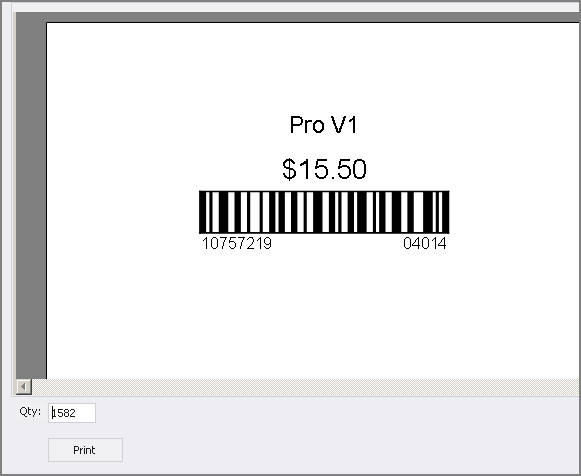
The Label option will display the Item label format and QTY On Hand. Labels can be printed for a single item in the maintenance screen.
Top is the description of the Item.
The price.
Bar Code
Bottom Right is the SKU
Bottom Left is a cost code: the shop can use this code to see the purchased date and cost.
Cost code can be read from right to left.
9 = month this label was printed
21 = year this label was printed
757 = current average cost $7.57
10 a default number placed in front of all cost codes
This will update every time a new label set is printed as long as the information has changed
QTY field defaults to the total on Hand; you can change the QTY if you wish to print less or more labels, then click Print.
Pictures
Pictures can be uploaded of the Item(s); the picture can only be seen in this screen and nowhere else in the system
Point of Sale Screen
The Point of Sale screen is where you will specify if the item is to print on the POS Receipts.
Print on Pay - When checked, the item will print on the Pay Receipts. A Pay Receipt is what is presented to the member before closing the ticket to a settlement type.
Print on Settle - When checked, the item will print on the Settle Receipt. A Settle Receipt includes everything that the Pay Receipt displays but also includes the form of payment and additional gratuities. Typically Retail Shops do not print a Pay Receipt and only Print a Settle Receipt.
Please Note: If Print on Pay and Print on Settle are not checked the Items will not be listed on the receipts. The only time a club should choose not to print an item on a receipt is if it is a zero priced item.
Example: The club might want to track Member Green Fees that are not charged or towels given at the Pool; they would ring up the item at POS for reporting purposes but do not want it on the member receipt. If the item has a price and one of these two fields are not checked; the total on the ticket will be correct but the item will not be listed.
Button Style
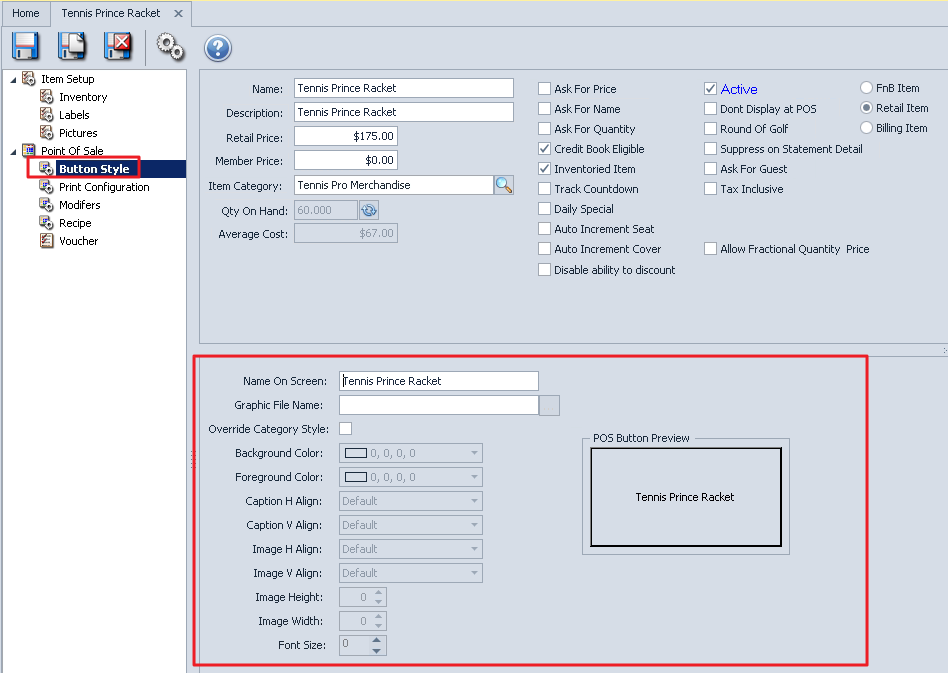
This area allows you to change how the button for the Item will appear in POS.
Name on Screen - This is the description to display on the POS button. The information you entered in the Name field will automatically populate this field if you answered Yes to the below message.
Graphic File Name - You can upload an image to display on the button. Holding the mouse at the end of the line, a light gray box will appear or click the end of the line to browse to the correct image file.
Background Color - Click the down arrow and select the color you want for the background.
Foreground Color - Click the down arrow and select the color you want for the text
Caption H Align - Click the down arrow and select the horizontal alignment of the text.
Caption V Align - Click the down arrow and select the vertical alignment of the text.
Image H Align - Click the down arrow and select the horizontal alignment of the image.
Image V Align - Click the down arrow and select the vertical alignment of the image.
Font Size - Enter the font you want the text size to be.
Image Height - Change the image height; 100 is a good starting point.
Image Width - Change the image width; 100 is a good starting point.
POS Button Preview - This box will give you a preview of what the alignment and colors will look like.
Vouchers
See Office - Items > Office - Vouchers for details on how to Create, Sell and Redeem vouchers.
Manage Item Combos
Item Combos provide users the ability to combine multiple individual items into one combined item that can then be sold with a single transaction. An example of an Item Combo may be a Golf Invitational comprised of the following items: 1) 18 holes of golf, 2) a Cart Fee, 3) Dinner, and 4) a Prizes Fee. Item Combos also allow users to break out the revenue from the sale of an Item Combo to different General Ledger accounts (if desired).
Select the Item Module, then select Manage Item Combos.
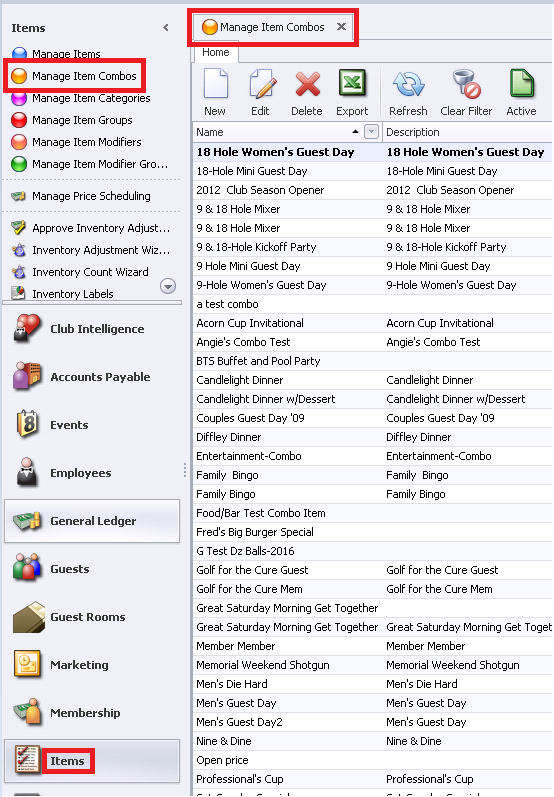
To Create a New Combo, click the New icon.
To Duplicate a combo, click the save and new icon, then select ok. When duplicating, When the new duplicate combo is created the price of the individual items, total price, name, desc and button style will all need to be reset, but the settings for the item combo will flow through.
To Edit a Combo, highlight the Item and double-click or select the Edit icon on the toolbar. The Combo Maintenance screen will appear.
Name - The name of the Item Combo
Description - The description of the Combo; this is optional and for internal viewing only.
Item Category - The Item Category associated with the Item Combo. Click the search Icon and select the associated Category.
Price - The total price of the Item Combo. Please note that the sum of the individual items comprising the Item Combo must equal the price of the Combo.
Split Pricing Evenly - When selected, this function will allocate the total price of the Item Combo evenly among all the items comprising this Combo. (i.e. If the Item Combo Price is set to $150.00 and 3 items comprise the Combo, each item would automatically be set to price of $50.00.)
No Modifier Upcharge - When selected, this will prevent additional charges assigned to item modifiers comprising the Combo from being applied to the Combo.
Auto Increment Seat - Used for F&B only if using seat position (see Manage F&B Items for more details).
Auto Increment Cover - Used for F&B only if using Cover Count (see Manage F&B Items for more details).
Don't Display at POS - When selected, this will prevent the Item Combo from being displayed on the Point of Sale device.
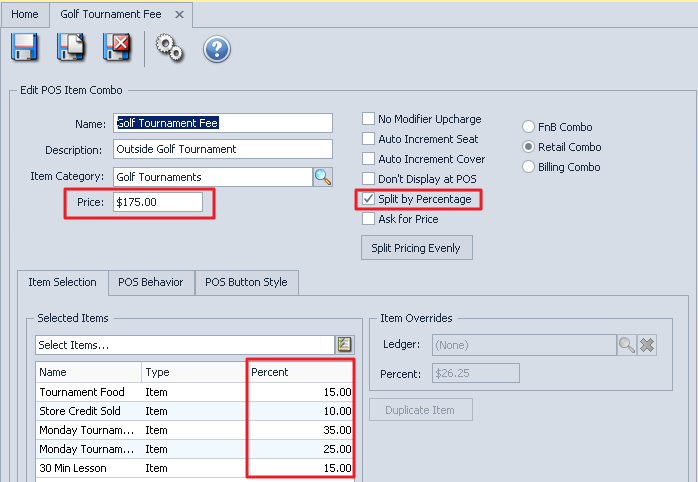
Split by Percentage - When selected, this allows the Item Combo to be split by a percentage instead of by price. Please see the section below for more details on configuring Item Combos split by percentage vs. split price.
Note: Combos can only hybrid a Retail and F&B Item, you can no longer combo Billing and F&B or Billing and Retail.
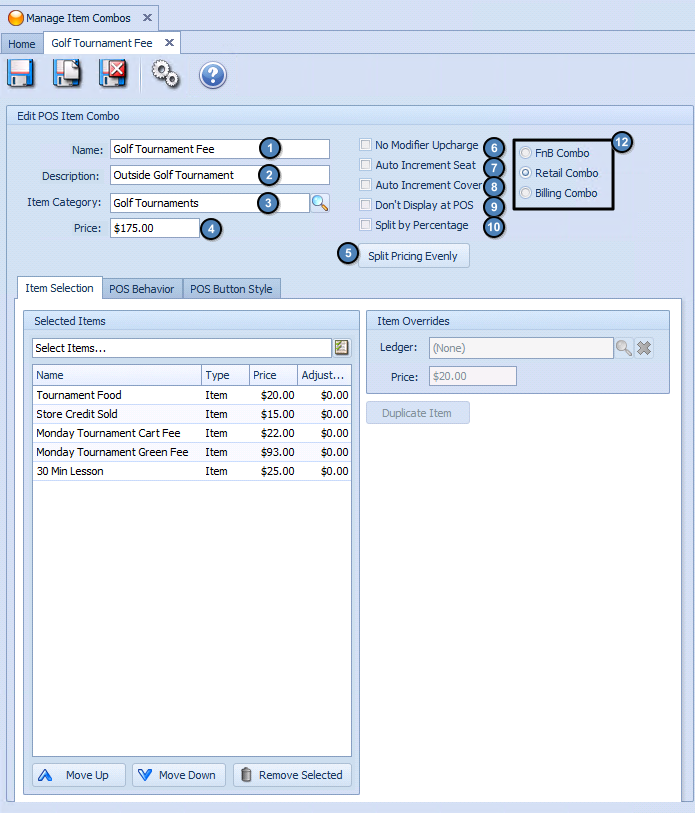
Item Selection Tab
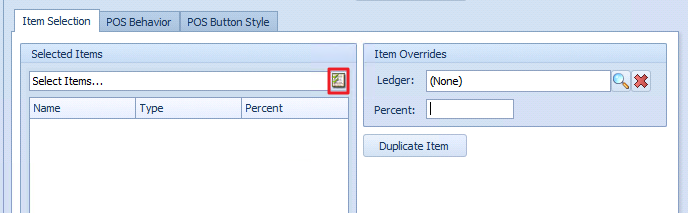
To add an item to an Item Combo, click the Select Items icon on the Select Items bar.
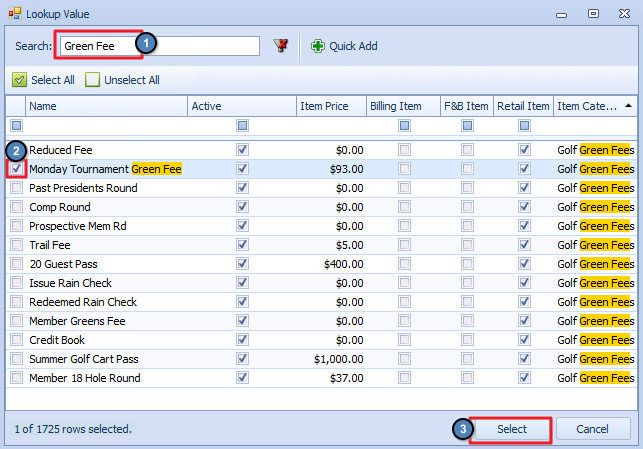
Use the Search bar to search for items or use the scroll bar to scroll through the list of items. Once the item(s) to be added has been found, check the checkbox next to the item(s) and click Select.
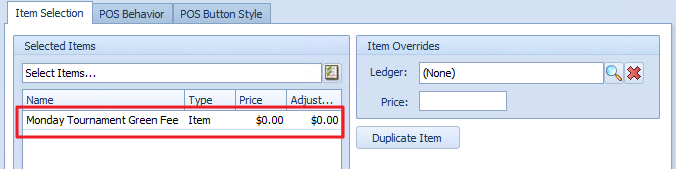
The item will be immediately added to the Selected Items section of the screen with the Price of $0.00 (or Percentage of 0% if configured to be split by percentage).
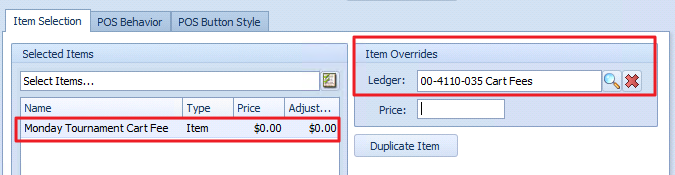
Click on the item within the Selected Items list to highlight the item you want to adjust. Use the Item Overrides Ledger field to override the GL account that will used to post the sale of the item comprising the Item Combo.
Please Note: If there is no GL Account listed in the Ledger Override for an item, the system will use the rules set on the Item in CMA to determine the GL Posting for the Item Combo. The Item Category selected on the Item Combo does NOT determine the GL Posting; it is important that you check with your accountant to ensure the sales are hitting the correct GL account(s) for your Item Combo.
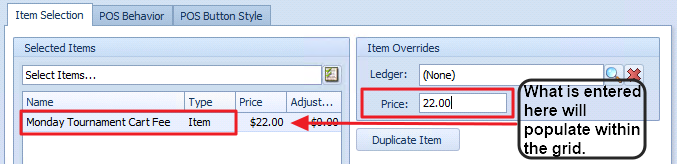
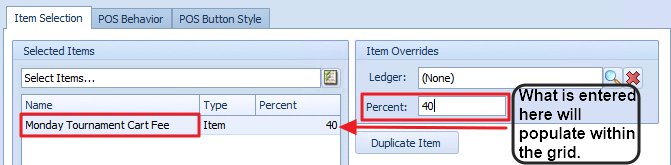
Click on the item within the Selected Items list to highlight the item you want to adjust. Use the Items Override Price field (or Item Override Percentage field if configured to be split by percentage) to set the price/percentage for the item.
If configured by price, the sum of each individual item price must equal the Item Combo price.
If configured by percentage, the sum of the individual item percentages must equal 100%.
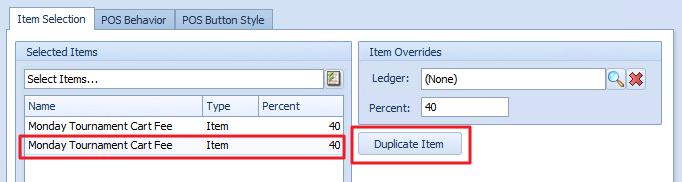
Use the Duplicate button to duplicate an item already added to the Item Combo.
Use the Up/Down Arrows to rearrange the order in which the items are listed. Use the Remove Selected button to remove items from the Combo.

Configuring Item Combos To Be Split By Price
Configuring Item Combos to be split by price is the systems default configuration. As a result, when the Item Combo Maintenance screen opens, it assumes the item will be split by price unless the Split By Percentage checkbox is checked. When splitting by price, users have 2 ways of doing this:
Option 1: The user ensures that the sum of each individual item price within the Item Combo equals the price of the Item Combo itself.
Option 2: The user elects to have the system split the Item Combo price evenly among the individual items comprising the Item Combo.
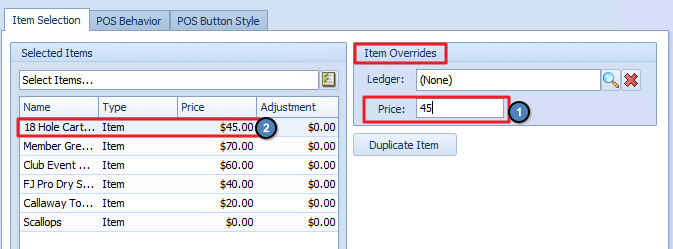
The price for each individual item comprising the Item Combo is set by using the Item Overrides Price field. After selecting the item to be added to the Combo, enter the price of the item the Items Overrides Price. The price entered is immediately reflected in the the Selected Items grid.
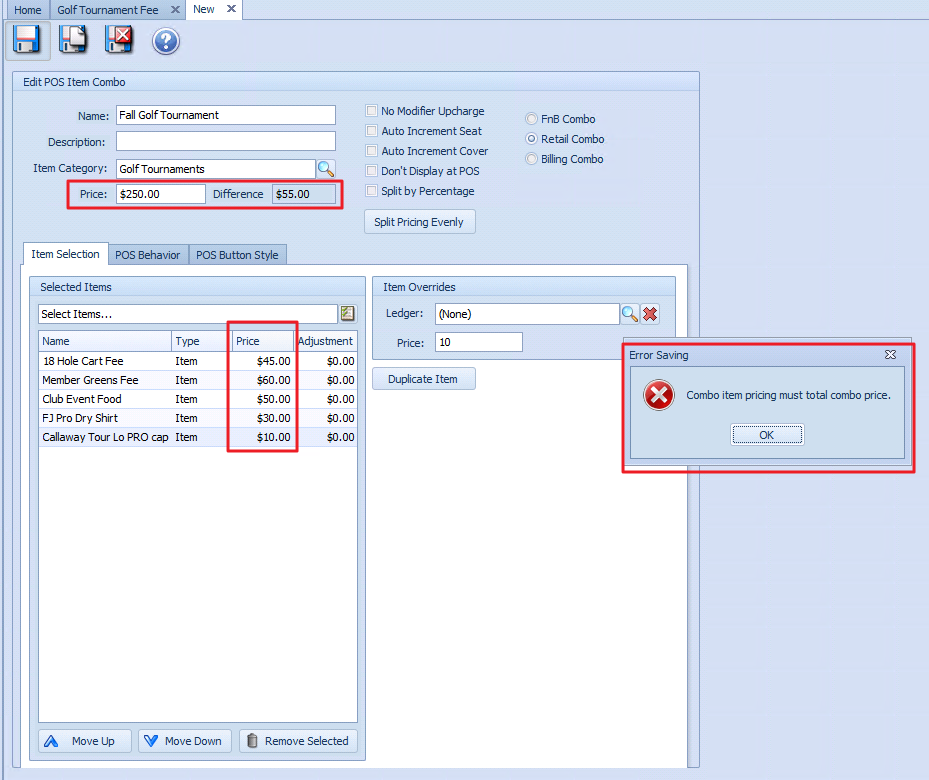
If the user does not ensure that the sum of each individual item equals the Item Combo price, the system will display a Difference field next to the Item Combo Price field and the user will be prevented from saving their changes. In the example below, the sum of all the individual items is $195.00. The Item Combo price is $250.00. The difference between the Item Combo price and the sum of the individual items is $55.00 which is displayed in the Difference field. When clicking the Save icon, the user is presented with an Error stating that "Combo item pricing must total combo price."
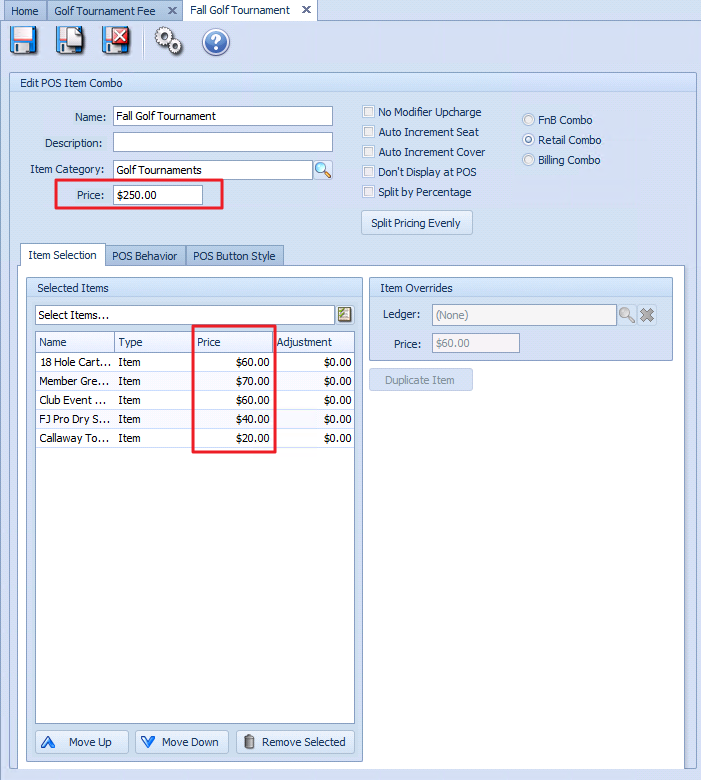
When the sum of each individual item equals the Item Combo price, the Difference field is not displayed and the user will be able to successfully save their changes. In the example below, the sum of all the individual items is $250.00 and the Item Combo price is $250.00.
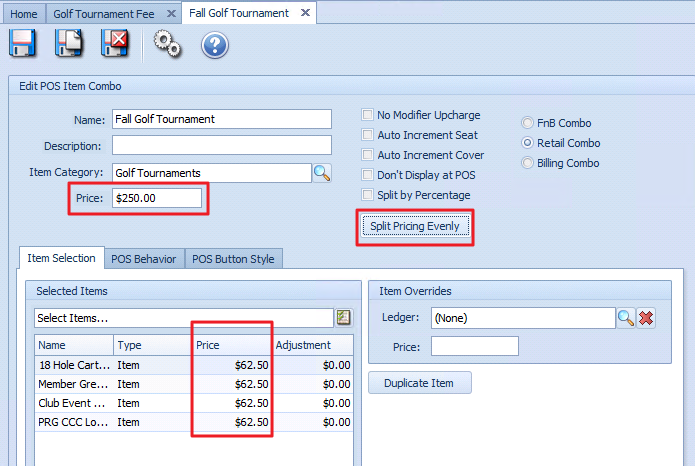
The user selects the Split Pricing Evenly button and the Item Combo price is automatically distributed evenly among the items comprising the Item Combo. In the example below, the Item Combo Price is $250.00. When the Split Pricing Evenly button is clicked, the 4 items comprising the Item Combo are immediately updated to the price of $62.50 in the Selected Items Grid.
Configuring Item Combos To Be Split By Percentage
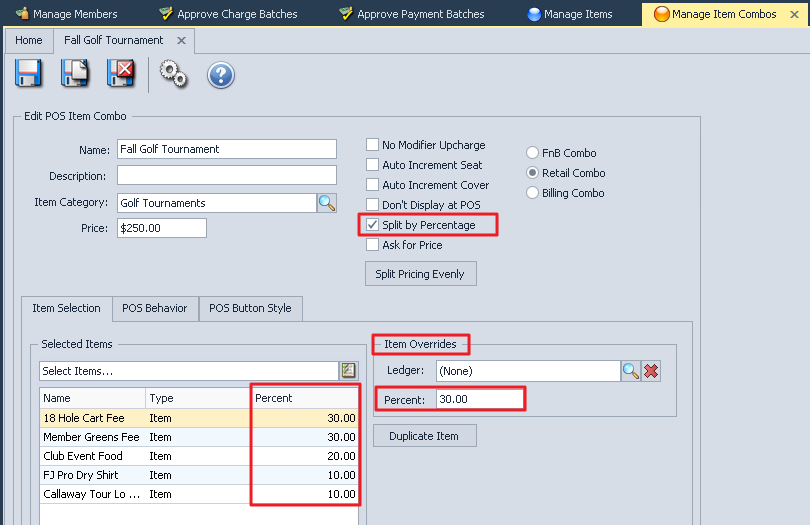
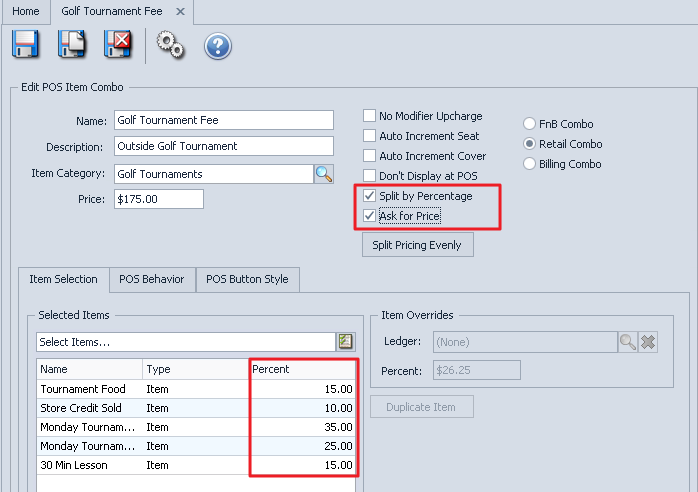
In order to configure Item Combos to be split by percentage, the Split by Percentage checkbox must be checked. When this checkbox is selected, the Select Items Grid will change from a Price Grid to a Percentage Grid. A percentage must then be allocated to each item comprising the Item Combo for a total of 100%. This is done using the Items Override Percent field. (Please Note: The only areas of the system that currently respect Item Combos being split by percentages are Mobile POS and Guest Room Rates. Classic POS does not respect Item Combos split by percentage.)
If the allocation does not add up to 100%, the system will display a Difference field next to the Item Combo Price field and the user will be prevented from saving their changes. In the example below, the sum of the percentage allocation is 90%. Since there is a difference of 10% from the required 100% allocation, the Difference field shows 10%. When clicking the Save icon, the user is presented with an Error stating that "Item percentage must total 100%."
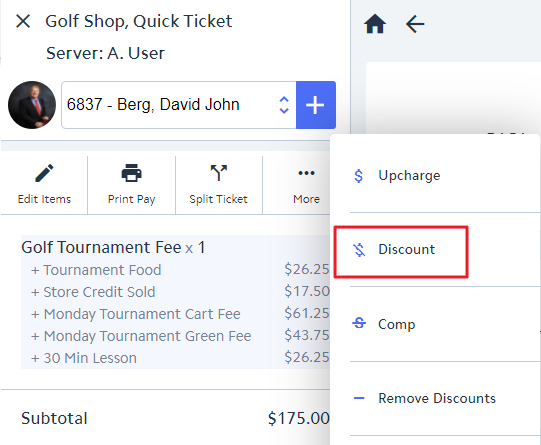
Configuring items by percentage allows the revenue percentage allocations to be maintained when an Item Combo is discounted or upcharged at the Mobile Point of Sale. In this example, the Golf Tournament Fee Item Combo has been configured to split by percentage with 15% allocated to Tournament Food, 10% to Store Credit, 35% to Cart Fee, 25% to Green Fee, and 15% to Lesson.
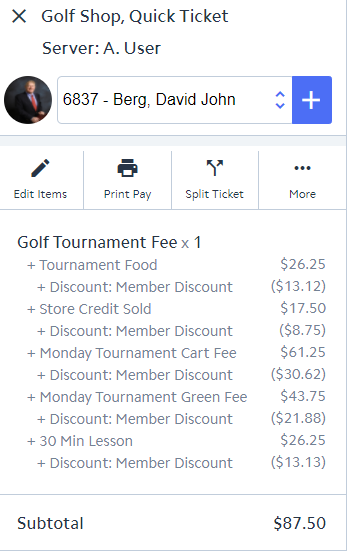
When David Berg is given a 50% discount at the Mobile POS for this Combo Item, the item percentage allocations are automatically maintained when applying the discount. Each item is automatically decreased according to the percentage they comprise the Item Combo.
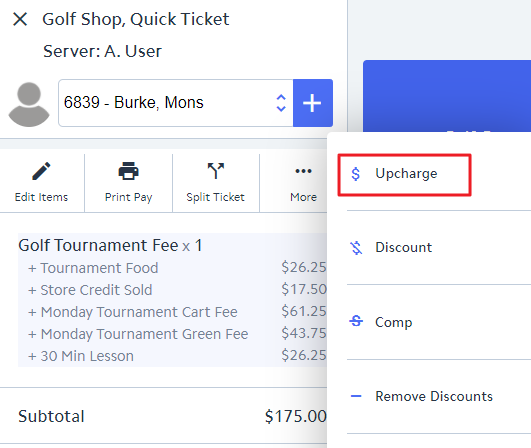
The same it true for Upcharging. When a 25% Upcharge is applied to Mons Burke at the Mobile POS for this Item Combo, the item percentage allocations are automatically maintained when applying the Upcharge. Each item is automatically increased according to the percentage they comprise the Item Combo.
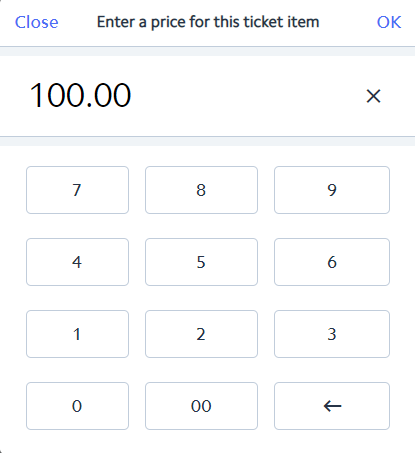
Item Combos that are configured to Split by Percentage can also be configured to Ask For Price. When a price is entered for the Item Combo at the POS, the funds will be distributed according to the percentages configured on the Item Combo.
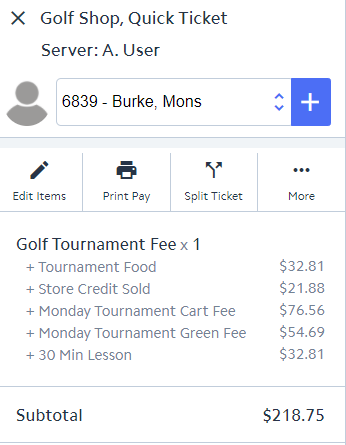
Using the Golf Tournament Fee Item Combo, when adding this item to David Berg's ticket, the user will be prompted to enter a price for the Item Combo. In this example, a price of $100.00 was entered. This amount was then allocated according the to percentage allocations defined on the Item Combo.
POS Behavior Tab
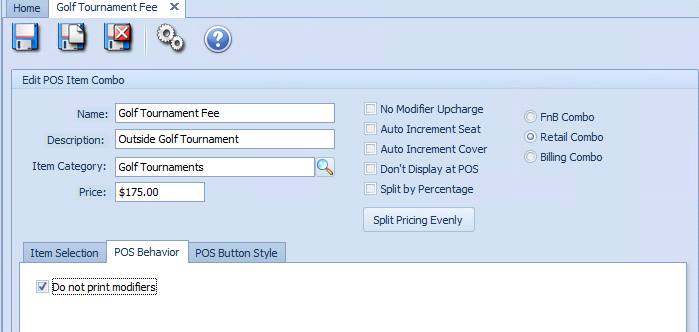
Use this tab control what will be printed on the Member's receipt when purchasing this Item Combo.
Checking the Do not print modifiers checkbox will prevent the itemized details of the Item Combo from printing on the receipt. Only the Item Combo Name will be printed.
Unchecking the Do not print modifiers checkbox will include all the itemized details along with the Item Combo Name on the receipt.
Please Note: This checkbox does not apply to Item Combos defined with the Billing Combo type. Billing type Item Combos will always display the itemized details.
POS Button Style Tab
Use this tab to control the appearance of the button within the Point of Sale. See POS Button Style for more instructions on how to adjust the settings.
Manage Modifier Groups
See Office - Items > Office - Manage Item Modifiers - Item Modifier Controls for details on how to Create, Sell and Redeem vouchers.
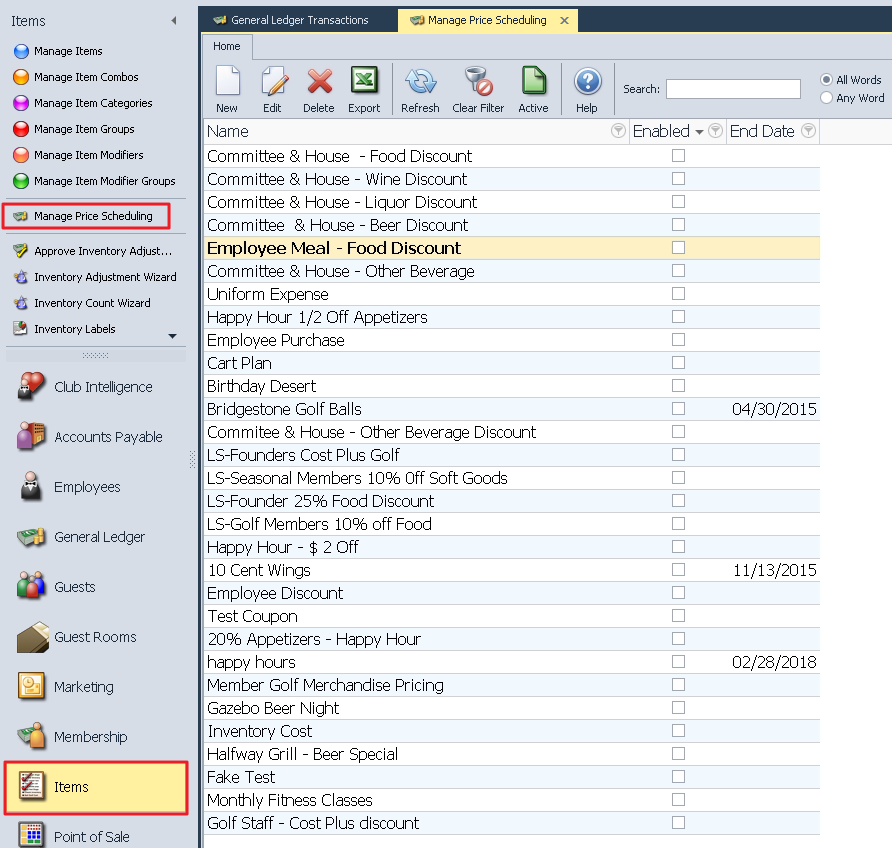
Manage Price Scheduling
Price Scheduling allows for the setup of various automatic discounts such as Specials Promos, Member Type discounts, Marketing Promos, Happy Hour discounts, Employee discounts, etc. The price schedule can be perpetual or a limited time offer.
To Edit an existing Price Schedule:
Highlight the Item and double-click or select the Edit icon on the toolbar.
To Create a New Price Schedule:
Click the New Icon. The Price Schedule maintenance screen will appear.
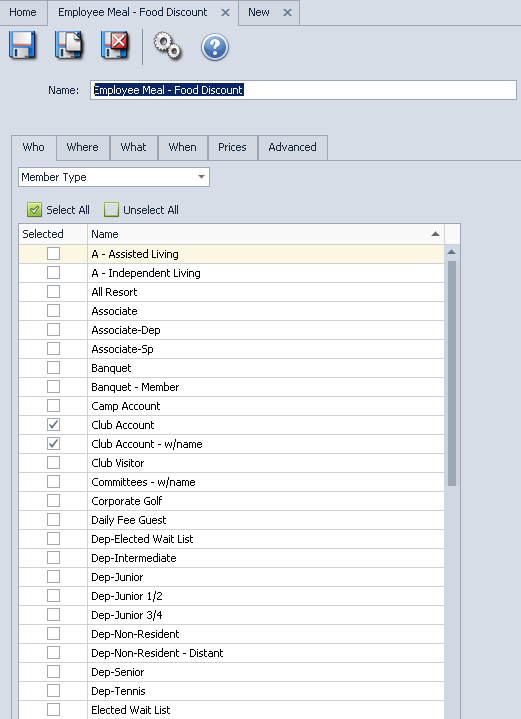
Name - Enter a name for the Price Schedule.
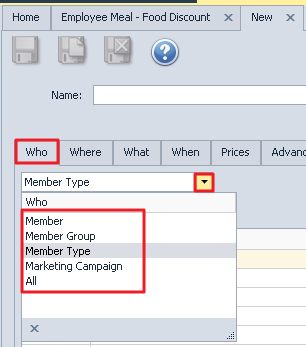
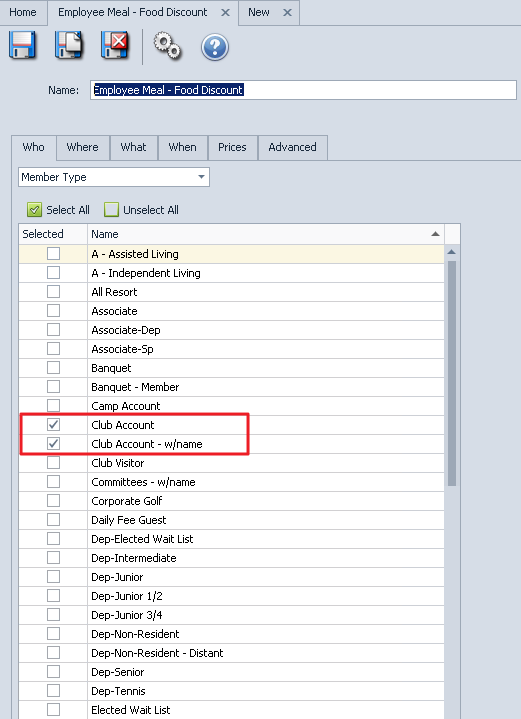
Who - Select Who will get the discount from the dropdown. Once you select the Who option, select from the detail associated with the criteria.
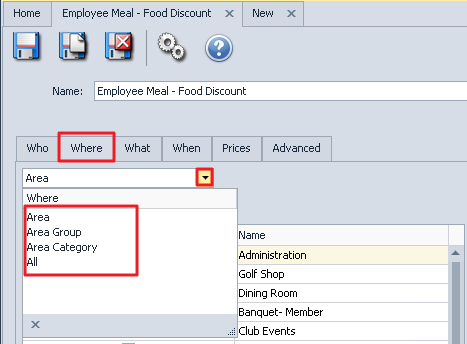
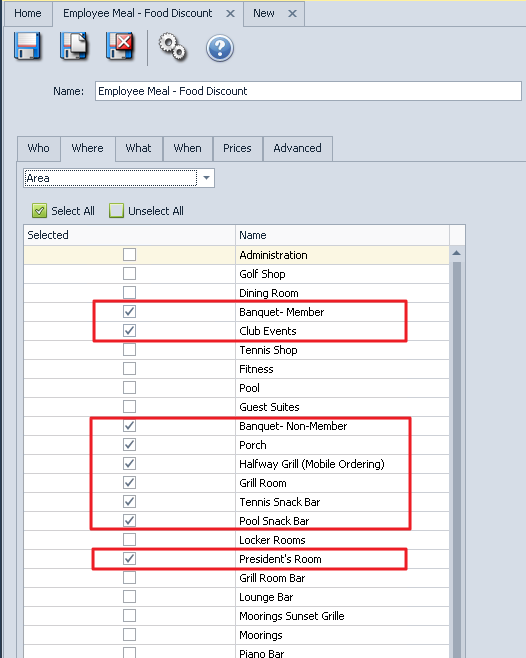
Where - Select Where in the club the discount can be applied. Once you select from the Where options, select from the detail associated with the criteria.
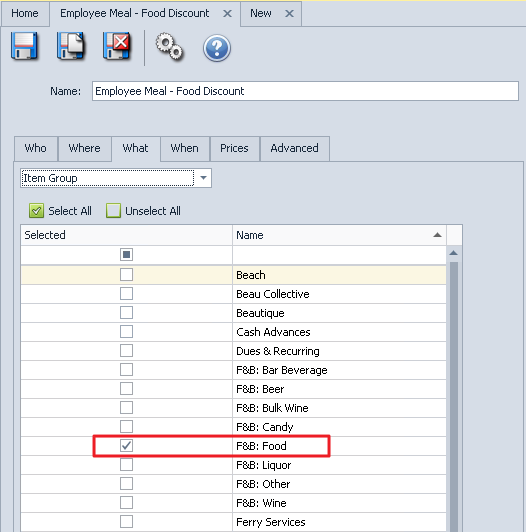
What - Select What type of items are eligible for this discount. Once you select from the What options, select from the detail associated with the criteria.
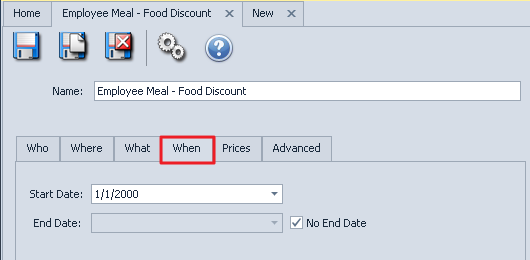
When - This tab allows parameters to be set to determine what date range does the discount apply. Enter the Start Date and End Date or check No End Date if there is no end to the discount.
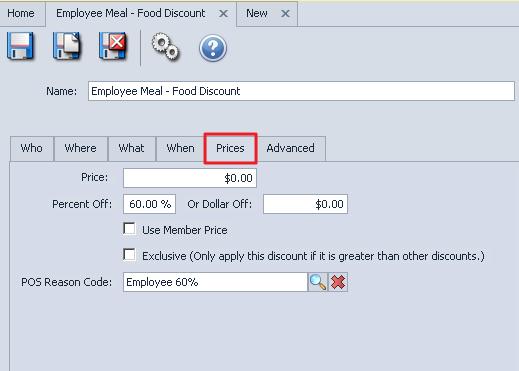
Prices - Enter here how the system will calculate the discount.
Price: Use this if all items are to have the same price. Example: All domestic beers are sold at $1.00.
Percent Off: Use this if the items are to be discounted by a percentage.
Or Dollar Off: Use this if items are to be discounted by a flat amount. Example: subtract $1.00 from item price.
Use Member Price: If checked, the system will use the Item Member Price. Example: if your club does not offer Member Price for all members then you can select from the Who tab which Member Types receive the Member price. The Member Type setup will not use member pricing.
Exclusive: If checked, the system will only apply this discount if it is greater than other discounts. This will prevent price schedules from conflicting if there is an overlap between their specified times of discount.
POS Reason Code: Use this to assign a Reason Code to the Price Schedule that will then be displayed on Pay/Settle tickets in both Classic and Mobile POS. If no Reason Code is assigned, or if multiple Price Schedules apply, the system will then display Price Adj.
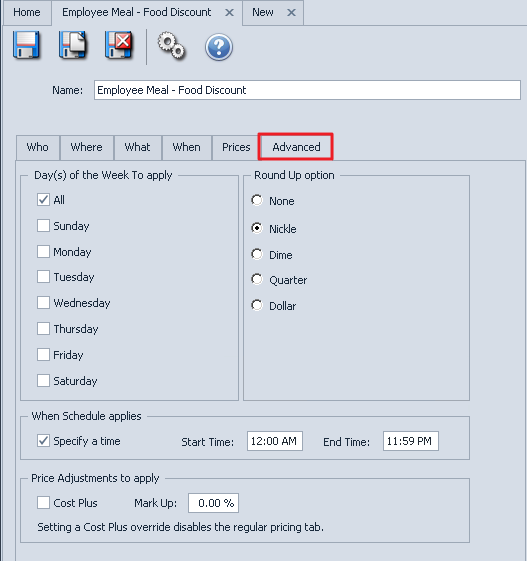
Advanced Tab:
Day(s) of the Week to Apply: Select the days (or All) the discount will apply.
Round Up Options: Select the preferred rounding method.
When Schedule Applies: Enter the Start Time and End Time the discount applies.
Price Adjustment to Apply: The Cost Plus functionality will look at the cost and apply the percent markup. Commonly used in Retail shops for Employee discounts such as cost +10 percent. This will not work if the Item does not have an associated cost.
Best Practices
Each Area can have different Account allocations by highlighting the Area name and entering the accounts.
The Tax and Service Charge percentages are determined by either the Item Category or Item Group (not the Item level).
Item overrides the category and group settings.
The Category can override the Group settings (only if the Override Group Settings is checked).
The Group settings will be used if there is no override on the Item or Category setting.
The Item level allows a cost dollar; if you have a percentage on the category level the Item cost dollar will override the category cost percent.
The Grid that displays will vary from user to user; if the user is only allowed to see Retail items they will not see FNB or Billing Items.
You can customize your grid to display different columns. To do so, right click anywhere on the grid and select Customize Columns. A list of Columns will appear and can be added to the grid by simply double clicking or dragging and dropping the column in question. The columns available will vary by module.
For more information on grids, please click Here to navigate to our Client Facing Knowledge Base. Grids can be found under the Interactive Reports Module.
Within reports you can click on the column heading to sort by any column or use the funnels to filter the information listed.
Another way to change the Item’s Category: Go to the Manage Items module and change within the item itself.
FAQs
Q: When managing my Items I am having trouble with Grids, where can I find more information to guide me?
A: Grid information is located in the Client Resource Center here.
Q: I need Items within a specific Item Category to use a different Tax Code than the Tax Code used at the Item Group level. How do I accomplish this?
A: Utilize the Override Item Group option within the Item Category. This will allow the user to override the Tax Code used at the Item Group level, and only have the Tax Code apply to Items within the Item Category.
Q: When I select an Item Category Button in POS, how do I rearrange the order the Item Buttons shown within the Category?
A: Use the Move Up/ Move Down options on the Item Selection tab of the Item Category.
Q: How is the GL posting of an Item Combo determined?
A: If there is no GL Account select within the Overrides section, the system will use the rules set on the specific Items within the Combo to determine the GL Posting. The Item Category selected on the Item Combo does NOT determine the GL Posting.
Q: I have a specific Item that will not apply toward Credit Book. Why?
A: Any Item intended to be redeemable by Credit Book must be flagged as Credit Book Eligible within the Item’s setup.
Q: How do I edit the size and color of the Item Buttons within an Item Category Button at the POS?
A: Navigate to the POS Item Button Style Tab within the Item Category and specify the appropriate size and color. Changes made on this tab will only affect the Items Buttons within the Category, not the Item Category Button.
