Adding Content and Images
- Kelsie Livingston
- Emily Carlson
Table of Contents
Overview
The Editor is the main editing tool used anywhere content and imagery is placed throughout the website.
Please Note: The New Clubessential Email Editor is available as of 9/16/19. Please refer to Clubessential Email Editor for a detailed User Guide.
Required Permissions
Admin
Editor
Adding Content
Inserting Content
Content can be added by directly typing into the editor, or by copying from an outside source and pasting into the editor. If copying from another source, please use the Paste as Plain Text function as detailed below.
Copy content from another source like Word by highlighting the text and using CONTROL + C to Copy.
Once the content is in the editor, highlight the text and apply various Style Tags as needed.
Heading 1: typically used for Page Titles
Heading 2-6: used for various sub-headings
Normal: used main body text
Adding Images
Images must first be uploaded to the Image Explorer before they can be used on the website. Access the Image Explorer from the Quick Tab Toolbar or from the Menu Bar under Insert > Image.
Choose the Folder in which your image is located.
Double click on the Image Name to Insert onto page.
Styling Images
Add styling Images such as wrap text and padding.
Right click on the Image > Image Properties
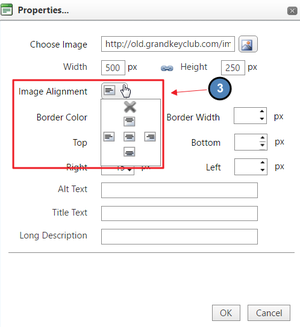
Choose Text Alignment to have content wrap around the image.
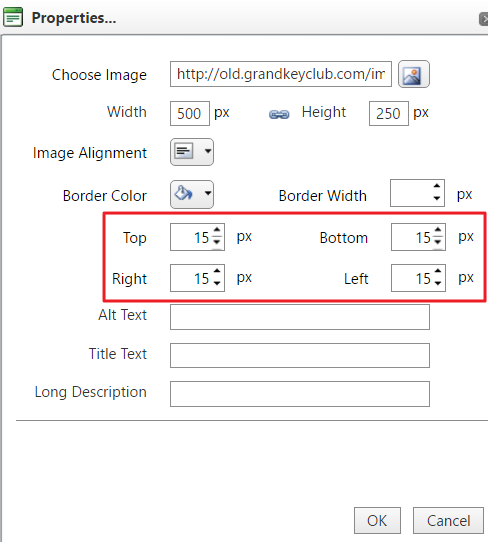
Add Padding to create space between the image and content. Common Padding Sizes: 5px, 10px, 15px, 20px.
Save/Publish Content
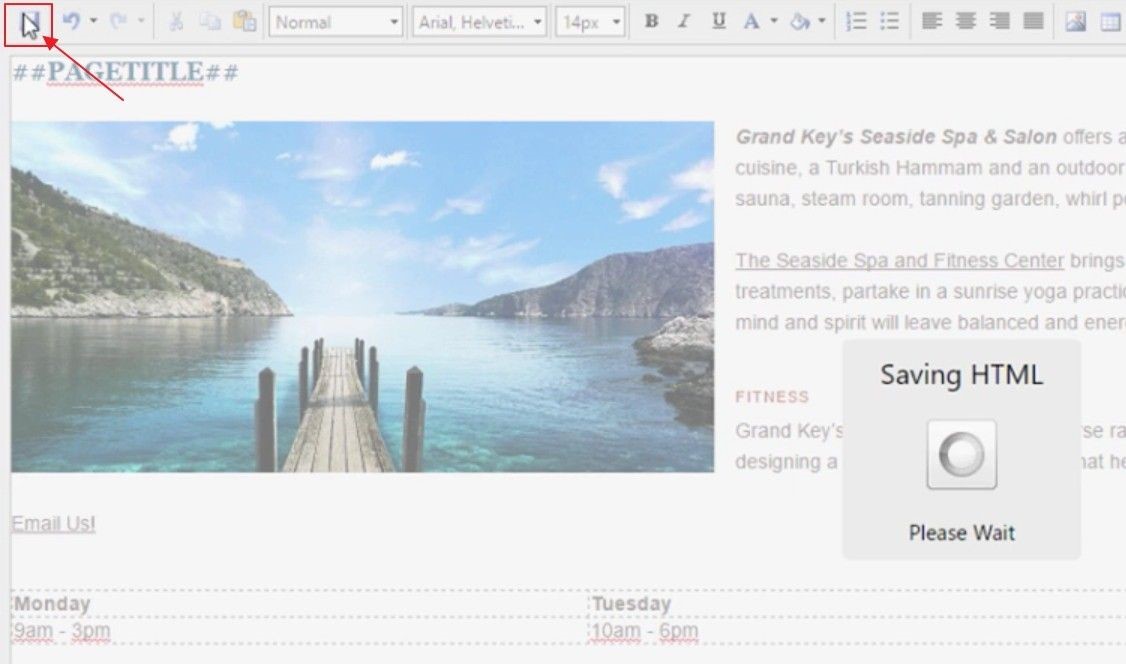
When finished editing, click Save to publish changes and exit the Editor.
Best Practices
When copying content from an outside source, always use the Paste as Plain Text function to strip outside formatting. This will ensure that the proper pre-defined font options are applied to the content.
Using additional font options is not recommended as it is best to streamline content font. It is best to only use the Style Tags option.
Resize and Crop Images prior to using imagery on the website to ensure the proper dimensions rather than resizing on the page.
Remember to Save after edits are made or edits may be lost. Once Saved, the changes will publish live.
FAQs
I copied content into the editor, but the font does not match the styling of the website font. A: Be sure to use the Paste as Plain Text function when copying font from an outside source. Copying from another source will copy over the font styling from the outside source. Once you use the Paste as Plain Text, you can then use the Style Tags to apply the appropriate font designated for the site design.
What is the best way to format a list of names or contact information on a page? An easy way to style names or contact information using multiple columns is by using tables. This way, the information can line up properly by applying styling to cells, rows, or columns.
I need to add an image to my page, how do I add it?A: First, the image must be added to the Image Explorer. After the image in in the Image Explorer, you can then use the Insert > Image function in the editor which will access your library database from the Image Explorer.
